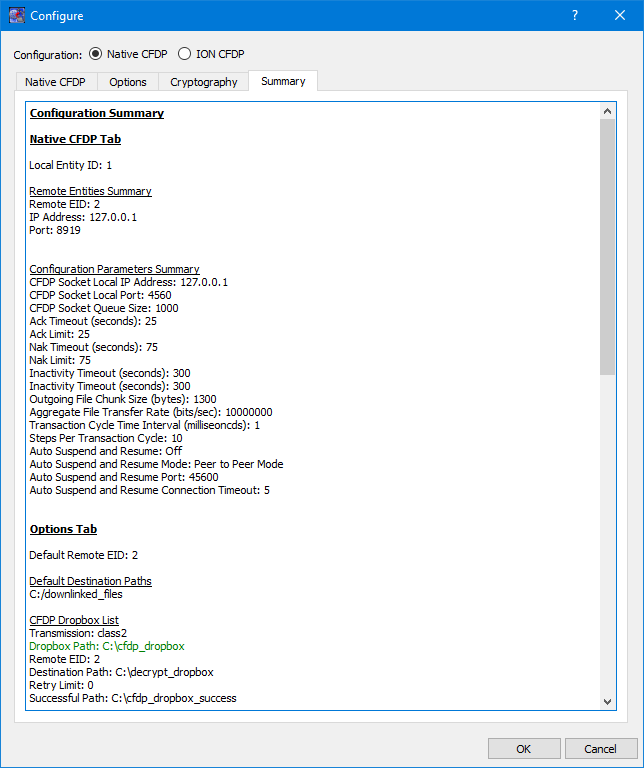
The Configure dialog provides the capability to configure for Native CFDP or ION CFDP. When Native CFDP is selected, the Native CFDP, Options, and Cryptography tabs will be displayed. When ION CFDP is selected, the ION CFDP, Options, and Cryptography tabs will be displayed. The Native CFDP tab is used to configure parameters required for Native CFDP. The ION CFDP tab is used to configure parameters required for ION CFDP. The Options and Cryptography tabs are used to configure parameters that are optional and apply to both Native CFDP and ION CFDP. The Summary tab provides a summary of all configuration parameters.
Native CFDP Tab
The Native CFDP tab is shown in Figure 3. Each field is described below.
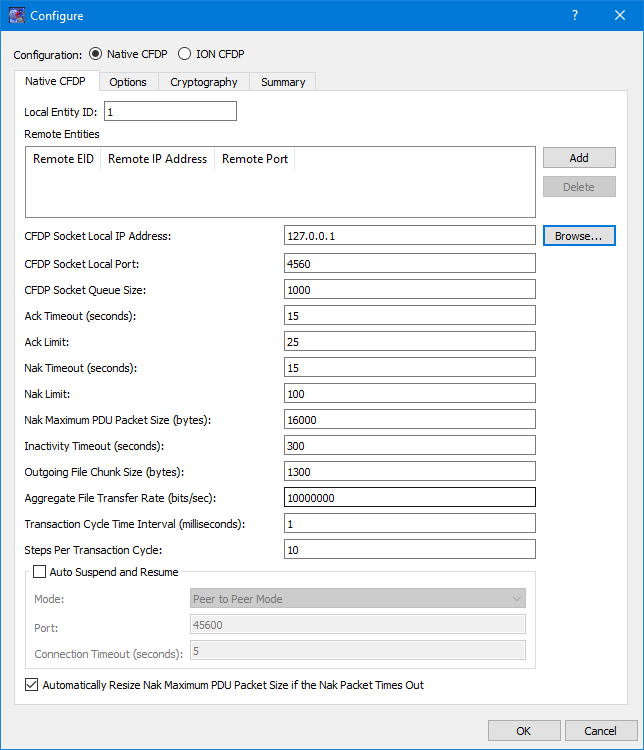
Local Entity ID
This field should contain your Entity ID.
Remote Entities List
The CFDP application provides the capability to communicate with one or more entities when transferring files. The Remote Entities List identifies the Remote Entity ID, the Remote IP Address, and the Remote Port for each remote entity.
CFDP Socket Local IP Address
A UDP socket is created to send and receive CFDP packets. This is the local IP address used for the UDP socket.
CFDP Socket Local Port
A UDP socket is created to send and receive CFDP packets. This is the local port used for the UDP socket.
CFDP Socket Queue Size The UDP socket that is created to receive CFDP packets may store CFDP packets in a queue prior to the packets being processed by the CFDP library. This queue minimizes the chances of a CFDP packet being dropped due to packet transmission bursts or a temporary CPU spike on the receiving platform. In general, a larger queue size is needed for higher transmission rates. If an unacceptable number of CFDP packet retransmissions is occurring, increasing the queue size or decreasing the file transfer rate may help decrease or eliminate the CFDP packet retransmissions. Minimum value is 0, maximum value is 1,000,000 and the default value is 1000.
Ack Timeout
The CFDP library sends positive acknowledgment on reception of the end-of-file packet and finished packet. This timeout defines the number of seconds the CFDP library will wait for the ACK packet to arrive prior to retransmitting the end-of-file or finished packet. Minimum value is 1, maximum value is 2,147,483,647 and the default value is 15 seconds.
Ack Limit
The ACK limit is the number of ack timeouts that may occur prior to cancelling the CFDP transaction. Minimum value is 1, maximum value is 2,147,483,647 and the default value is 25.
Nak Timeout
The CFDP library sends a NAK packet identifying the CFDP packets that were not received by the CFDP library. This timeout defines the number of seconds the CFDP library will wait for the retransmission of the requested CFDP packets. Minimum value is 1, maximum value is 2,147,483,647 and the default value is 15 seconds.
Nak Limit
The NAK limit is the number of Nak timeouts that may occur prior to cancelling the CFDP transaction. Minimum value is 1, maximum value is 2147483647 and the default value is 100.
Nak Maximum PDU Packet Size
The NAK maximum PDU size is the maximum size of a NAK PDU packet in bytes. If the CFDP transactions identifies multiple gaps in the data transmission and the gap information cannot fit in a single NAK PDU, the CFDP library will generate multiple NAK PDUs until all the data gaps are filled or the number of NAK PDU's surpasses the NAK limit. Providing a limit on the maximum size of the NAK PDU ensures the PDU will not be dropped because its size exceeds the limits of its transport medium. Minimum value is 50, maximum value is 64042 and the default value is 16000.
Inactivity Timeout
The inactivity timeout is the length of time, in seconds, the CFDP library is required to wait between CFDP packet receptions prior to cancelling the CFDP transaction. Minimum value is 1, maximum value is 2,147,483,647 and the default value is 300 seconds.
Outgoing File Chunk Size
The outgoing file chunk size is the maximum size, in bytes, of the data zone of the CFDP packets created by the CFDP library. Minimum value is 1, maximum value is 65,200 and the default value is 1300 bytes.
Aggregate File Transfer Rate
The aggregate file transfer rate represents the maximum transmission rate, in bits per second, of the CFDP packets created by the CFDP library. Minimum value is 1, maximum value is 2,147,483,647 and the default value is 10,000,000 bits/second.
Transaction Cycle Time Interval
The transaction cycle time interval, in milliseconds, controls the processing rate of CFDP library transactions. Minimizing the cycle time, increases the transaction speed or processing rate. The default value is 1 millisecond. The minimum value is 0 milliseconds and the maximum value is 2,147,483,647 milliseconds. This value should only be incremented if CPU usage on the host platform is unexpectedly high while idling or while processing a transaction.
Steps Per Transaction Cycle
The step per transaction cycle defines how many steps or transaction cycles are performed prior to delaying the prescribed transaction cycle time. Increasing the steps per transaction cycle, increases the transaction speed or processing rate. The default value is 10. The minimum value is 1 and the maximum value is 2,147,483,647 milliseconds. This value should be incremented if the CFDP library is not able to achieve the aggregate file transfer rate. This value should be decremented if CPU usage on the host platform is unexpectedly high while idling or while processing a transaction.
Auto Suspend and Resume
The auto suspend and resume checkbox enables the automatic suspension or resumption of all CFDP transactions associated with a remote entity ID when a network connection to that remote entity ID has been lost or found. The TReK CFDP library creates a UPD socket that sends and receives four byte packets to confirm network connectivity. This capability may be used to detect Acquisition Of Signal (AOS) and Loss Of Signal (LOS) events enabling native CFDP to successfully transfer files across multiple AOS/LOS windows without manual intervention. Auto suspend and resume is only supported by the TReK CFDP library. Therefore, the TReK CFDP library software must be running on both the local and remote nodes. The default value is false.
Auto Suspend and Resume Mode
The auto suspend and resume mode identifies the auto suspend and resume relationship between the local node and the remote nodes. The three auto suspend and resume mode parameter values are Peer to Peer Mode, Client or Ground Mode, and Server or Flight Mode. A peer to peer configuration allows all peer to peer nodes to perform CFDP transactions with each other. A client server configuration restricts CFDP transactions. A client may only perform CFDP transactions with a server and a server may only perform CFDP transactions with a client. A client may perform CFDP transactions with multiple server nodes and a server may perform CFDP transactions with multiple client nodes. The four byte connectivity packet is always being transmitted by all nodes in a peer to peer configuration regardless of network connectivity or AOS/LOS periods. In a client/ground and server/flight configuration the connectivity packet is always being transmitted by the client/ground node but the server/flight node only transmits the connectivity packet over a confirmed network connection during AOS periods. The default value is Peer to Peer Mode.
Auto Suspend and Resume Port
The auto suspend and resume port is used to create the UDP socket that sends and receives the four byte connectivity packet. The default port value is 45600 (minimum value 0 and maximum value 65535).
Auto Suspend and Resume Connection Timeout
The auto suspend and resume connection timeout value is the length of time, in seconds, that must pass between the receipt of connectivity packets before a connection between two entity IDs or nodes is declared lost. Connectivity packets are sent once every half second. Minimum value is 1, maximum value is 2,147,483,647 and the default value is 5.
Automatically Resize NAK Maximum PDU Packet Size if the Nak Packet Times Out
The auto_resize_nak_max_pdu_size boolean enables the automatic detection of dropped NAK PDUs and the resizing of the NAK maximum PDU packet size. The auto resize capability is advantageous when a CFDP transaction experiences a very large number of dropped packets or data gaps and the size of the associated NAK PDU packet that is identifying the gaps exceeds the capability of the transport medium (i.e., the NAK PDU packet is heavily fragmented and cannot successfully reach its destination). Under these conditions, CFDP's best option is to reduce the size of NAK PDU by splitting it up across multiple NAK PDUs. The CFDP auto resize code attempts to determine an acceptable value for the NAK maximum PDU size given the limitations of the transport medium and the understanding that the CFDP library's best performance is achieved by setting the NAK maximum PDU size to the largest value supported by the transport medium. If auto resize of the NAK maximum PDU size has been enabled and a CFDP transaction determines no NAK PDU packet has been successfully transmitted to its destination, the auto resize code automatically halves the NAK maximum PDU size and retransmits the PDU. The auto resize code continues to halve the NAK maximum PDU size and retransmit a smaller NAK PDU until the NAK PDU reaches its destination or the NAK maximum PDU size drops below 1280 bytes. Once a NAK PDU packet is successfully transmitted to its destination, the auto resize code is no longer exercised for that transaction and subsequent dropped NAK PDUs are not resized. Each new CFDP transaction initiates a new instance of the auto resize code. Therefore, the value for the maximum NAK PDU size may be different with different CFDP transactions. The auto resize code initialize the maximum NAK PDU size to the value provided by the nak_max_pdu_size CFDP parameter. By resetting the nak_max_pdu_size CFDP parameter in the CDFP configuration file or CFDP GUI to the value determined by the auto resize code, the CFDP application may avoid dropping NAK PDU packets that are too large to be supported by the transport medium. The default value is true.
ION CFDP Tab
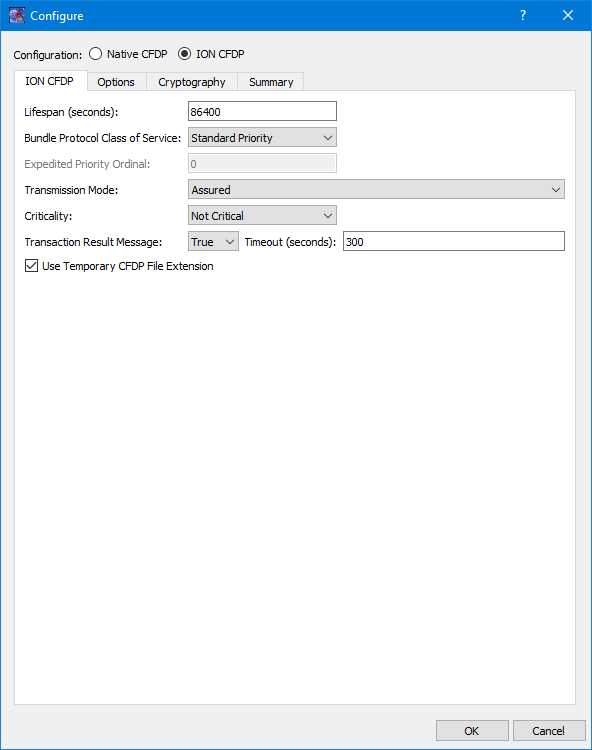
The ION CFDP tab is shown in Figure 4. Each field is described below.
Lifespan
The lifespan is the bundle's "time to live" (TTL) in seconds. The bundle is destroyed if its TTL has expired and it has not reached its destination. Minimum value is 1, maximum value is 2,147,483,647 and the default value is 86400.
Bundle Protocol Class of Service
The BP class of service defines the transmission priority of outbound bundles from three ION priority queues corresponding to bulk, standard and expedited priorities. The three BP class of service parameter values are Bulk Priority, Standard Priority, and Expedited Priority. The expedited priority queue must be empty before bundles in the standard or bulk queues are serviced by ION. Therefore, bundles with Expedited Priority should only be sent in critical/emergency situations. The default value is Standard Priority.
Expedited Priority Ordinal
The expedited priority ordinal is only associated with the Expedited Priority class of service. Ordinal values range from 0 (lowest priority) to 254 (highest priority). The default value is 0.
Transmission Mode
The transmission mode defines the reliability of bundle delivery to a destination. The three transmission mode parameter values are Best Effort, Assured, and Assured with Custody Transfer. Best Effort relies upon the underlying convergence-layer protocol (e.g., Transmission Control Protocol or TCP) to retransmit missing bundles. Assured is a step up in reliability and includes BP support in detecting a lost TCP connection and re-forwarding of bundles assumed aborted by the convergence-layer protocol failure. Assured with Custody Transfer requires the reception, by the sending node, of a custody acceptance or refusal signal (packaged in a bundle) from the receiving node. The default value is Assured.
Criticality
A critical bundle is one that has to reach its destination as soon as is physically possible. For this reason, bundles flagged as critical may not include custody transfer and require an ION configuration with contact graph routing. In some cases, a critical bundle may be sent over multiple routes to ensure delivery to its final destination. Critical bundles are placed in the expedited priority queue and should only be used in emergency situations. The two criticality parameters are Not Critical and Critical. The default value is Not Critical.
Transaction Result Message
The support transaction result boolean enables the generation and transmission of a CFDP transaction result message to the source node. If the source node receives the transaction result message within a designated time window, it will update its transaction status with the transaction result (e.g., success or fail). If the support transaction result boolean is set to "true" and the result message is not received within a designated time window, the source node's transaction status is set to "unknown". If this boolean is set to "false" and the source node did not experience any problems while transmitting the CFDP transaction request, the final transaction status is set to "finished". This capability is only supported by the TReK CFDP library. Therefore, the TReK CFDP library software must be running on both the source and destination nodes. The default value is true.
Transaction Result Message Timeout
The transaction result message timeout is the length of time, in seconds, the TReK CFDP library will wait for a transaction result message prior to setting the final status of the transaction to "unknown". Minimum value is 1, maximum value is 2,147,483,647 and the default value is 300.
Use Temporary CFDP File Extension
The Use Temporary CFDP File Extension checkbox corresponds to the "tmp_cfdp" file name extension boolean variable in the TReK CFDP software. If the checkbox is checked, the "tmp_cfdp" file name extension variable will be set to “true”. If the checkbox is not checked, the "tmp_cfdp" file name extension variable will be set to “false”. The checkbox should be checked if ION is transferring one or more files to a TReK dropbox directory. The most common scenario is if an encryption dropbox has been created and configured to place an encrypted file in an ION CFDP dropbox. If the ION CFDP dropbox is configured to transfer the encrypted file to a decryption dropbox on the destination platform, the "tmp_cfdp" file name extension variable must be "true" on the source or sending platform to properly decrypt the file on the destination platform. If this variable is set to "true", a temporary file name is created for all file transfers by adding a ".tmp_cfdp" file name extension to the original file name on the destination platform. Upon successful completion of the file transfer, the ".tmp_cfdp" extension is removed from the file name on the destination platform. If the destination is a dropbox, the dropbox will use the file name to determine both when the file has completed its transfer and when the file may safely be decrypted by the dropbox. If this variable is set to "false", no temporary file name is used during the file transfer and ION "put" transfers to a TReK dropbox directory are not supported. Native CFDP uses a temporary "tmp_cfdp" file name for all file transfers and does not require this boolean variable when transferring files to a dropbox directory. Setting the "tmp_cfdp" file name extension variable to "true" even if a file transfer destination is not a TReK dropbox directory is supported and does not impact performance. However, the destination platform must be hosting TReK version 5.2.0 or higher to properly remove the ".tmp_cfdp" file name extension. The default value is true.
Options Tab
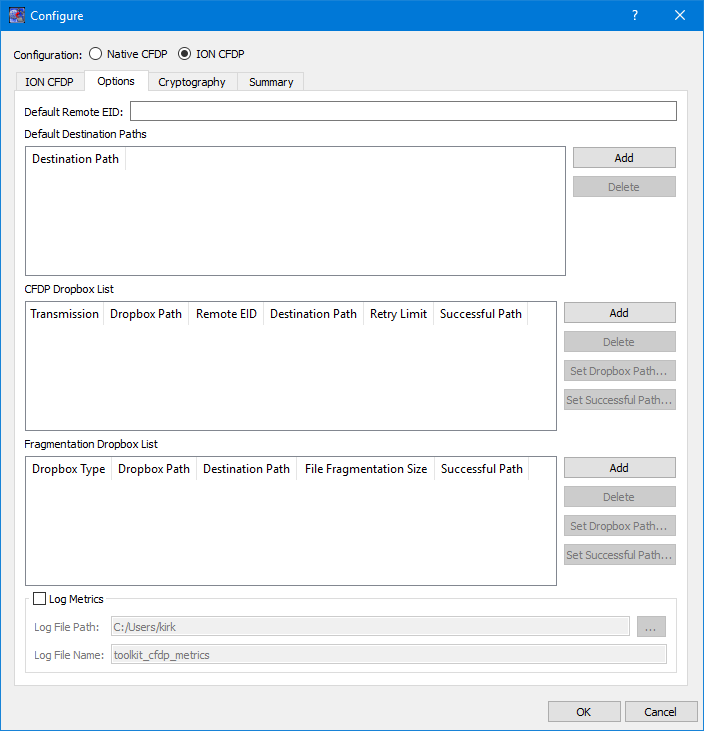
The Options tab is shown in Figure 5. The Options tab items are applicable regardless of whether Native CFDP or ION CFDP is selected. Each field is described below.
Default Remote EID
The Default Remote EID is used during Drag and Drop. If this field contains a value, this value will be entered as the Remote EID when you drag and drop a file into the “CFDP Commands” list or the “CFDP Command” field.
Default Destination Paths
The Default Destination is used during Drag and Drop. All destinations listed in the Default Destination Paths list will appear in the “Default Destination” menu on the CFDP main window. When you drag and drop a file into the “CFDP Commands” list or the “CFDP Command” field, the destination selected from the Default Destination menu will automatically be entered into the Destination field.
CFDP Dropbox List
The CFDP Dropbox List is used to define one or more CFDP dropboxes to push files to a remote destination. The dropboxes are available in both Native and ION CFDP modes.
Dropbox configuration parameters include where the dropbox is located and the destination of each file placed in the dropbox. When the CFDP service is active, a dropbox file is transferred to the dropbox destination immediately after the file is copied to the dropbox. If files exist in the dropbox prior to CFDP service activation, the pre-existing dropbox files are immediately transferred when the CFDP service is activated.
For each CFDP dropbox you can define the Transmission, the Dropbox path, the Remote entity ID, the Destination Path, the Retry Limit, and the Successful Transaction Path. If the Dropbox path or the Destination Path are part of a dropbox chain, the cell text will be green. The Retry Limit defines the number of additional attempts at transferring a file before declaring the transaction unsuccessful. The successful transaction path is the path to a directory, on the dropbox source platform, where successfully transferred files are stored upon completion of a transaction. If the successful transaction path is empty, the dropbox will delete the file, on the source platform, if the file is successfully transferred to its destination. For Native CFDP class 1 service, files are simply moved or deleted from the dropbox directory when the transaction has completed the number of retry attempts. The dropbox for ION CFDP is identical to Native CFDP except "class1" or "class2" is replaced by “////” indicating the ION CFDP parameter values defined on the ION CFDP configuration tab will be used. Another important distinction between an ION and Native CFDP dropbox is associated with the Retry Limit. An ION CFDP dropbox ignores the Retry Limit value and resets the value to zero in the TReK CFDP library. There are two important reasons why the ION CFDP dropbox does not attempt to retransmit failed CFDP transactions:
| 1. | ION CFDP uses the original filename when populating the destination file. Any attempt to retransmit a file must also include a "delete" filestore directive to ensure no file with the original filename exists at the destination. |
| 2. | If transaction result messages are being processed and an incorrect "transaction_result_message_timeout" is chosen, a successfully transferred file will be incorrectly deleted. |
If transaction result messages are not being processed by the TReK ION CFDP library (i.e., class 1 service), files are simply moved or deleted from the dropbox directory when the transaction has completed the transfer from the dropbox.
Dropbox files are renamed with a ".dropbox" extension while they are being processed by the dropbox. If a dropbox fails to successfully transfer a file to the destination directory, a class 2 native CFDP dropbox will initiate additional transfer attempts up to the "Retry Limit" designated by the dropbox configuration. A class 1 Native CFDP dropbox will blindly repeat the file transfer up to the "Retry Limit". If the final status message of a file transaction identifies an unsuccessful file transfer, the file is renamed with an ".unsuccessful" extension. If the CFDP library fails to receive the final status of a file transaction, the file is renamed with an ".unknown" extension. If an error occurred during the file transfer, the file is renamed with a ".droperror" extension. Only successfully transferred files are moved or deleted from the dropbox directory.
Fragmentation Dropbox List
The Fragmentation Dropbox List is used to define one or more Fragmentation dropboxes. There are three types of Fragmentation dropboxes: frag dropbox, frag_cfdp dropbox, and a defrag dropbox. A frag dropbox is used to fragment a file. A frag_cfdp dropbox is used to fragment a file that will be transferred using CFDP, and a defrag dropbox is used to reassemble a file from file fragments. A Fragmentation Dropbox is often used in conjunction with a CFDP Dropbox in order to split apart a very large file, transfer the individual file pieces using CFDP, and then reassemble the file from the individual file pieces. The Fragmentation Dropbox feature is available in both Native and ION CFDP modes.
Dropbox configuration parameters include the type of fragmentation dropbox, where the dropbox is located, the destination directory, the size of the file fragments, and the successful transaction directory. If the Dropbox path or the Destination Path are part of a dropbox chain, the cell text will be green.
When the CFDP service is activated, any pre-existing dropbox files are immediately fragmented. If the local destination directory of a frag dropbox is a CFDP dropbox, the file fragment will automatically be transferred to the CFDP dropbox's remote destination directory. If the CFDP dropbox's remote destination directory is a defrag dropbox, the fragmented file will automatically be put back together and moved to the defrag dropbox's destination directory when all the file fragments have been received by the defrag dropbox. By chaining together frag and defrag dropboxes with a CFDP dropbox, a completely automated file fragmentation, CFDP file transfer, file defragmentation chain may be created and set in motion by placing a file in the local frag dropbox. In addition, encrypt and decrypt dropboxes may be chained to the frag and defrag dropboxes producing an automated sequence of file encryption, file fragmentation, CFDP file transfer, file defragmentation and file decryption. The fragmentation dropbox comes in two flavors: "frag" or "frag_cfdp". A "frag" dropbox creates a series of file fragments and immediately places the fragments in the dropbox's destination directory which may or may not be a CFDP dropbox directory. If the "frag" dropbox destination directory is a CFDP dropbox, the file fragments are downlinked simultaneously in a series of independent CFDP transactions. A "frag_cfdp" dropbox creates a series of fragments but only after the successful CFDP transfer of the previous file fragment to the remote destination of CFDP dropbox. In other words, a "frag_cfdp" dropbox's destination directory must be a CDFP dropbox directory and the "frag_cfdp" dropbox will only create the next file fragment after the previous file fragment has been successfully transferred by the CFDP dropbox. For this reason, a "frag_cfdp" dropbox's destination directory must be CFDP dropbox directory. If multiple files are added to a "frag_cfdp" dropbox simultaneously, the "frag_cfdp" dropbox will process the files one at a time, fragmenting and transferring all the fragments from one file prior to fragmenting and transferring all the fragments from the next file in the "frag_cfdp" dropbox. A "frag_cfdp" dropbox will require more time to transfer a very large file but has the advantage of an orderly and immediate cancellation of file fragmentation if there are problems transferring a file fragment using CFDP.
The frag or frag_cfdp dropbox breaks up a file into fragments sized to match the desired file fragmentation size, in bytes, and creates a new file fragment name by adding the current file fragment count and total fragment count to the fragmented file's dropbox extension. The defrag dropbox parses the file fragment name to identify the file's current and total fragment count prior to reconstructing the original file. The frag and defrag dropbox also include a destination path to the local directory where the file fragments or reconstructed files are stored. If the successful path is defined, the dropbox will move the original file or file fragments placed in the dropbox to the successful directory if and only if new file fragments or reconstructed files are successfully created and stored in the dropbox's destination directory. If the successful path is empty, the dropbox will delete the original file or file fragments placed in the dropbox if and only if new file fragments or reconstructed files are successfully created and stored in the dropbox's destination directory. If the frag or defrag dropbox fails to fragment or reconstruct the file, the file will be renamed with a time tagged ".droperror" extension and remain in the dropbox. The frag or defrag dropbox will not attempt to fragment or defragment/reconstruct a file with a ".droperror" extension in its filename.
Log Metrics
The CFDP application provides the capability to write metrics to a file. If you check Log Metrics, metrics will be written to the log file specified. Metrics Logging will start when CFDP is activated and stop if you uncheck the box or CFDP is deactivated. See Section Metrics for details on what metrics are logged.
Log File Path
The Log File Path should contain the absolute path to the directory where the log file should be written.
Log File Name
The Log File Name field should contain the name to use for the log file.
Cryptography Tab
The Cryptography tab is shown in Figure 6. Each field is described below.
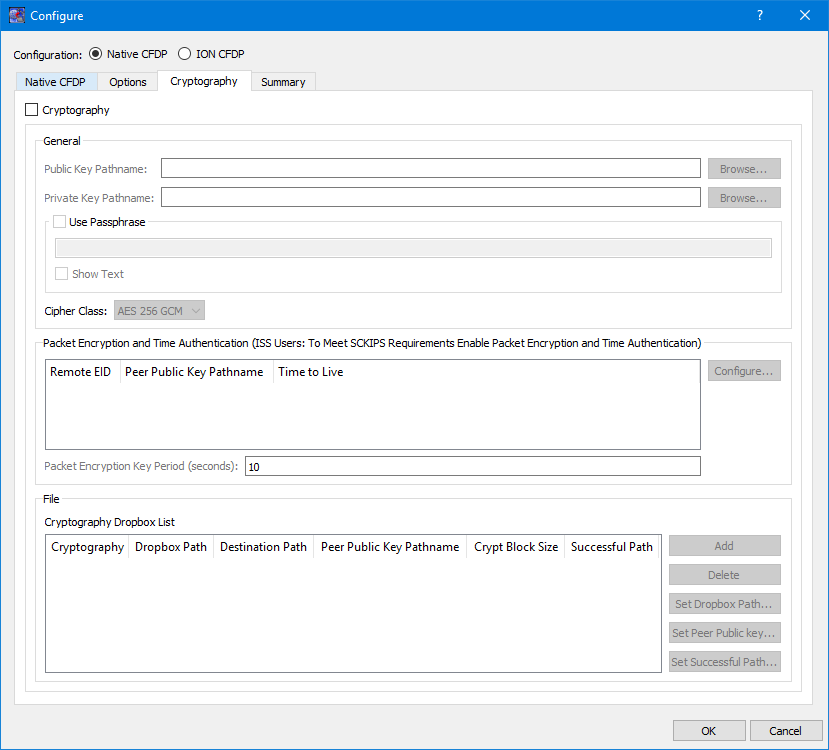
Cryptography Checkbox
The Cryptography checkbox is used to identify that Cryptography services are in use.
Public Key Pathname
The Public Key Pathname field is used to enter the absolute path to a public key. The Browse button can be used to browse the local disk for the file.
Private Key Pathname
The Private Key Pathname field is used to enter the absolute path to a private key. The Browse button can be used to browse the local disk for the file.
Use Passphrase
The Use Passphrase checkbox is used to specify that the private key requires a passphrase to unwrap/decrypt the private key in the private key file. The passphrase text will not be displayed in the clear. If you want to see the text entered in the clear, check the Show Text checkbox.
Show Text
The Show Text checkbox is used to display the passphrase text in the clear.
Cipher Class
The Cipher class identifies what cipher class should be used when performing the cryptography functions.
Special Note for ISS Users Who Need to Meet Safety Conditional Ku IP Services (SCKIPS) Requirements: Both Packet Encryption and Time Authentication must be enabled to meet SCKIPS requirements.
Packet Encryption and Time Authentication
The Packet Encryption and Time Authentication area provides the capability to identify that cryptography services (encryption and decryption) should be used when communicating with a specific remote entity. All CFDP packets will be encrypted before being sent and decrypted upon reaching the destination when this feature is enabled. This capability can only be used with Native CFDP. Please note that if you turn this feature on for a remote entity and you also define an encryption dropbox that will communicate with the remote entity, this will result in double encryption. The list will contain all remote entities that were entered into the Remote Entities list on the General tab. If you do nothing all CFDP communication with the remote entities listed will be unencrypted. If you would like to use cryptography services when communicating with the remote entity you should provide a peer public key for the remote entity. The public key from another computer is a peer public key. TReK will use peer public key terminology when referring to another computer’s public key. To encrypt the packets for a specific remote entity you assign a peer public key for that remote entity. Doing this will identify that you wish to use cryptography services when communicating with that remote entity. In addition to encrypting the stream, you can also choose to use the time authentication feature to provide protection against inadvertent or malicious replay of the packets. The time authentication feature uses an encrypted timestamp, sequence count, and time to live value to provide replay resistance time authentication. The time authentication software compares the packet's decrypted time stamp with the operating system time (plus or minus the decrypted TTL) to determine if the packet's decrypted time falls within the authentication time window. In addition, the time authentication software does not allow a packet to be processed if the decrypted time and sequence count stays the same or decreases when compared to the previous decrypted packet time and sequence count. These features can be configured for each Remote Entity by selecting the Remote Entity in the list and pushing the Configure button. The Configure Packet Encryption and Time Authentication dialog shown in Figure 7 will be displayed.
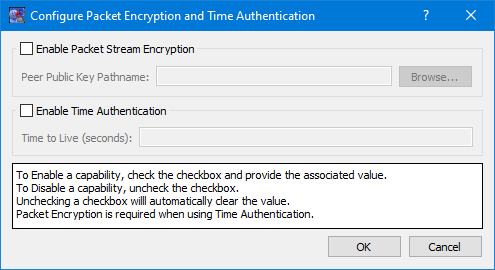
Enable Packet Stream Encryption
To enable packet stream encryption, check the checkbox and provide a Peer Public Key Pathname value. To disable packet stream encryption uncheck the checkbox. When the checkbox is unchecked the Peer Public Key Pathname field will be cleared.
Peer Public Key Pathname
A Peer Public Key must be identified if Packet Stream Encryption is enabled. You can use the browse button to select the Peer Public Key file or enter the complete path for the peer public key file.
Enable Time Authentication
To enable time authentication, check the checkbox and provide a Time to Live value. To disable time authentication uncheck the checkbox. When the checkbox is unchecked the Time to Live field will be cleared.
Time to Live
A Time to Live (TTL) must be defined if Time Authentication is enabled. The encrypted TTL value is in seconds and must be between 0-65535.
The Packet Key Encryption Period defines how often to generate a new Cipher Encryption Key (CEK) when streaming encrypted data. It can be configured to generate a new CEK for a packet stream once every "x" seconds to support encryption of high rate packet stream.
Cryptography Dropbox List
The Cryptography Dropbox List is used to define one or more Cryptography dropboxes. There are two types of Cryptography dropboxes: encrypt and decrypt. An encrypt dropbox is used to encrypt a file. A decrypt dropbox is used to decrypt a file.
The Cryptography Dropbox List is used to define one or more Cryptography dropboxes. There are two types of Cryptography dropboxes: encrypt and decrypt. An encrypt dropbox is used to encrypt a file. A decrypt dropbox is used to decrypt a file.
Dropbox configuration parameters include the type of cryptography dropbox, where the dropbox is located, the destination directory, the absolute path to the peer public key, the crypt block size, and the successful directory. Each parameter is described below:
Cryptography
Cryptography values are encrypt and decrypt. This identifies whether the dropbox is encrypting or decrypting files.
Dropbox Path
The Dropbox Path identifies the local directory to be used for the encrypt or decrypt dropbox. If the Dropbox path is part of a dropbox chain, the cell text will be green.
Destination Path
The Destination Path identifies a local directory where the new encrypted or decrypted file is created and stored. If the Destination Path is part of a dropbox chain, the cell text will be green.
Peer Public Key Pathname
The Peer Public Key Pathname identifies the absolute path to the peer public key file. The peer public key is the public key of the destination platform.
Crypt Block Size
The Crypt Block Size is an unsigned 32 bit value identifying the number of bytes that are read and encrypted or decrypted with every file read. A large crypt block size improves encryption and decryption performance but may also tax a CPU.
Successful Path
If the Successful Path is defined, the dropbox will move the original file placed in the dropbox to the successful directory if and only if a new encrypted or decrypted file is successfully created and stored in the dropbox's destination directory. If the successful path is empty, the dropbox will delete the original file placed in the dropbox if and only if a new encrypted/decrypted file is successfully created and stored in the dropbox's destination directory. If the encrypt or decrypt dropbox fails to encrypt or decrypt a file, the file will be renamed with a time tagged ".droperror" extension and remain in the dropbox. The encrypt or decrypt dropbox will not attempt to encrypt or decrypt a file with a ".droperror" extension in its filename.
An encrypt or decrypt dropbox file is encrypted or decrypted prior to being transferred to a local destination directory on the dropbox platform. Pre-existing dropbox files are immediately encrypted or decrypted as soon as the CFDP service is activated. If the local destination directory of an encrypt dropbox is a CFDP dropbox, the encrypted file will automatically be transferred to the CFDP dropbox's remote destination directory. If the CFDP dropbox's remote destination directory is a decrypt dropbox the encrypted file will automatically be decrypted and placed in the decrypt dropbox's destination directory. By chaining together encrypt and decrypt dropboxes with a CFDP dropbox, a completely automated encrypt, CFDP file transfer, decrypt chain may be created and set in motion by placing a file in the local encrypt dropbox. The encrypt, decrypt, CFDP dropbox chain is currently the only method TReK provides to automate file encryption/decryption using ION CFDP.
Figure 8 shows an example of an encrypt dropbox definition. A file placed in the Dropbox Path (C:\encrypt_dropbox) will be encrypted using the peer public key identified and a 1,000,000 crypt block size. Since a Successful Path has been provided, the original file will be moved from the Dropbox Path directory to the Successful Path directory upon successful encryption.

Figure 9 and Figure 10 show how an encrypt dropbox and a CFDP dropbox can be used together to encrypt a file and then transfer it using CFDP. In Figure 9, the encrypt dropbox Destination Path points to the CFDP Dropbox Path. This “chains” the two dropboxes together. When a file is placed in the C:\encrypt_dropbox directory and successfully encrypted, it will be placed in the C:\cfdp_dropbox folder and transferred to the CFDP dropbox Destination Path.

Once the encrypted file reaches its destination, you can leave it encrypted or decrypt it using a decrypt dropbox as shown in Figure 11.

When the encrypted file arrives in the C:\downlinked_files directory on the remote computer decryption will be applied and if successful the decrypted file will be placed in the C:\decrypted files directory. There is no need to define a decrypt dropbox if you wish to leave the file encrypted when it reaches its destination. If a decrypt dropbox is not defined, the C:\downlinked_files directory would be the final destination for the encrypted file.
Summary Tab
The Summary tab is shown in Figure 12. This tab displays a summary of all the configuration parameters specified on the other tabs. If a Dropbox path or Destination Path is green, this means it is part of a dropbox chain.