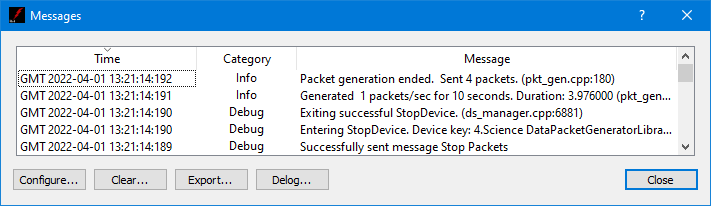
Various types of application messages are generated including information, progress, warning, error, and debug messages. Application messages are stored in memory and written to a temporary log file. The temporary log file is created on application initialization and exists as long as the application is running. It is deleted when you exit the application. The log file is located in the temporary directory provided by the operating system. Only a subset of messages are stored in memory while all messages are written to the temporary log file. The maximum number of application messages stored in memory is controlled by the message storage setting in the Configure Messages dialog. Once the maximum is reached, older messages are deleted to make room for new messages. Setting the maximum value to a large number can impact application performance since it will increase the amount of memory used by the application. Setting this number too low can cause you to miss important messages. The application default was selected to protect against both of these scenarios. Messages stored in memory are displayed in the Main Window Message Area and the Messages dialog. The Messages dialog is shown in Figure 23. The Main Window message area only displays Info, Warning, and Error messages. The Messages dialog displays messages based on the display preferences defined in the Configure Messages dialog. By default, the Messages dialog will display information, progress, warning, and error messages. Columns in the Messages dialog can be sorted by clicking on the column header. The Messages dialog is available from the Options menu.
Configure
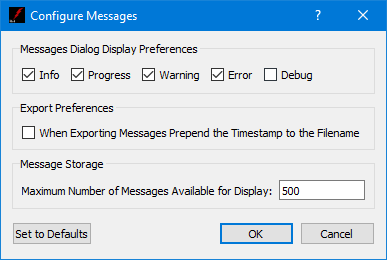
The Configure button provides access to the Configure Messages dialog shown in Figure 24. This dialog provides access to preferences associated with messages. Display preferences can be set to filter the types of messages (category) displayed in the Messages dialog. Export Preferences control how the time tag is added to the filename that is created when messages are exported. See the Export section for details. Message storage defines the maximum number of messages that will be stored in memory while the application is running. Once the maximum is reached, older messages are deleted to make room for new messages. The Set to Defaults button can be used to reset these properties to application defaults.
Clear
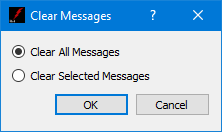
The Clear button provides access to the Clear Messages dialog shown in Figure 25. This dialog provides two ways to clear application messages stored in memory. You can clear all the messages or clear selected messages. Once you clear messages, the messages are permanently deleted in all views (Main Window Message Area and the Messages dialog).
Export
The Export button provides the capability to save all the application messages currently in memory to a file. When you push the Export button you will be prompted for a directory and filename. Export will save all messages in memory, not just the messages currently displayed in the Messages dialog (i.e. the Display Preferences are not applied). The name you provide for the file will be modified with a time tag that is added to the filename. The time tag indicates the time the file was closed. The default is to append the time tag to the filename. For example:
Filename Input: messages.txt
Filename Output: messages_2017-05-07_13~03~28.txt
If you would like to prepend the time tag to the filename you can set this preference in the Configure Messages dialog. This would result in the following:
Filename Input: messages.txt
Filename Output: 2017-05-07_13~03~28_messages.txt
Delog
The Delog button provides the capability to save all application messages generated since the application was started. Delog will retrieve the messages from the temporary log file. When you push the Delog button you will be prompted for a directory and filename. A timetag is not applied to the filename.
Filename Input: messages.txt
Filename Output: messages.txt