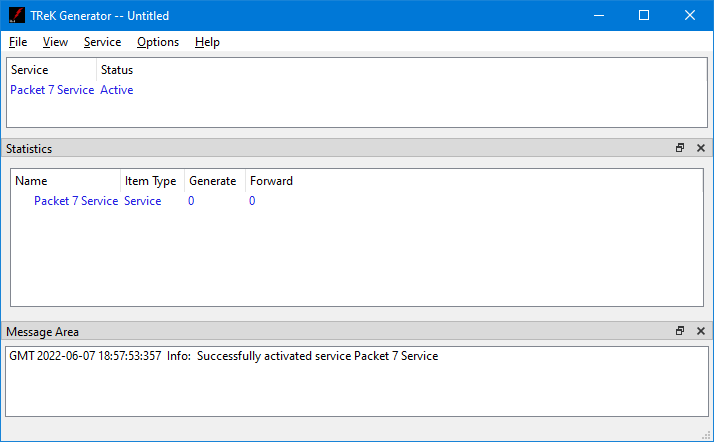
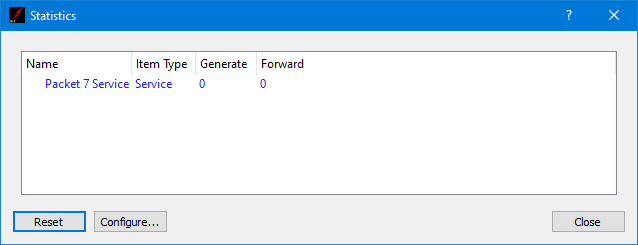
Statistics displays information about incoming data and services such as processing, recording, and forwarding. Statistics information is displayed in a dock window in the Main Window and in the Statistics dialog available from the Options menu. Figure 13 shows the Statistics dock window in the Main Window. Figure 14 shows the Statistics dialog.
Statistics can be configured to display different views of the statistics information. The view options can be accessed using the Statistics area pop-up menu. The pop-up menu is shown in Figure 15 and can be accessed by clicking the right mouse button in the statistics area.
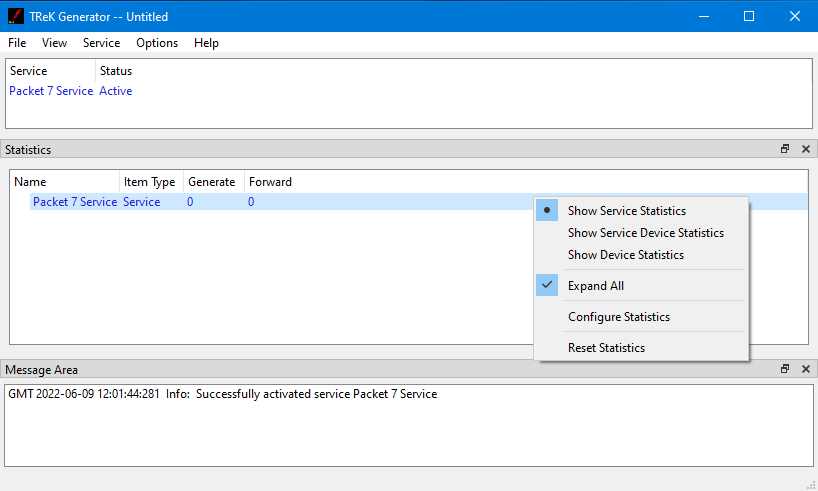
The Statistics pop-up menu has several options. Each is described below:
Show Service Statistics
Service Statistics is the default view. It is shown in Figure 13. This view shows statistics associated with each service in the service list.
Show Service Device Statistics
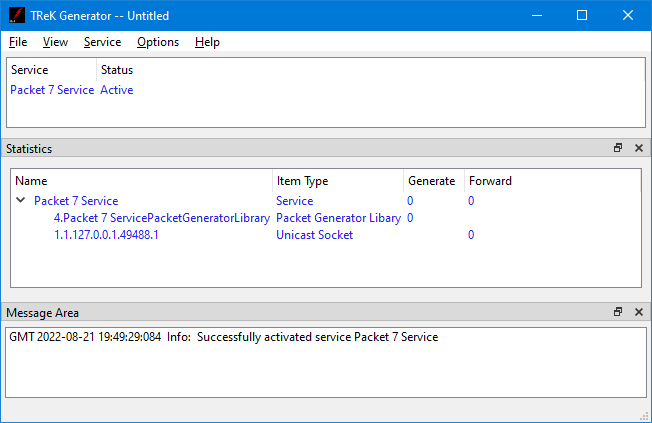
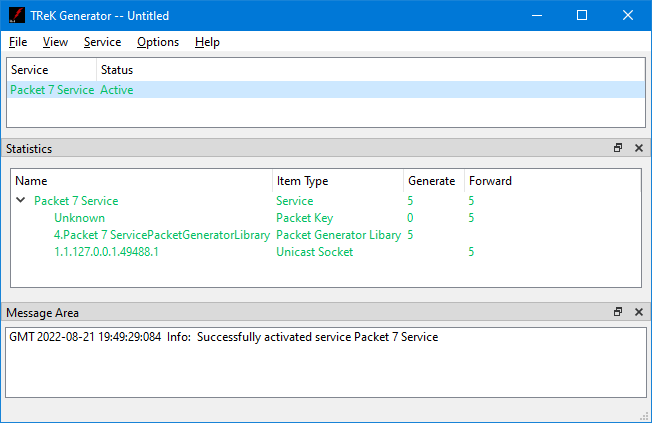
Service Device Statistics shows the same information as Service Statistics with the addition of devices that are used by the service. Figure 16 shows an example of a service configured to generate and forward data. In this view you can see the service is configured to generate data and forward the data on a unicast socket. Figure 17 shows the view after some data has been generated. Each row is described below:
Packet 7 Service: Indicates five packets were generated and five packets were forwarded.
Unknown: The Generator application can support multiple types of packets in a single service. The Unknown row represents the total statistics for all the packet types in use for that specific service.
4.Packet7ServiceGeneratorLibrary: This item is a generator library device created behind the scenes to generate data. This shows that five packets were generated by the Packet Generator Library.
1.1.127.0.0.1.49488.1: This item represents the socket used to forward data. The IP address is 127.0.0.1 and the port is 49488. This shows that five packets were forwarded using this unicast socket.
Show Device Statistics
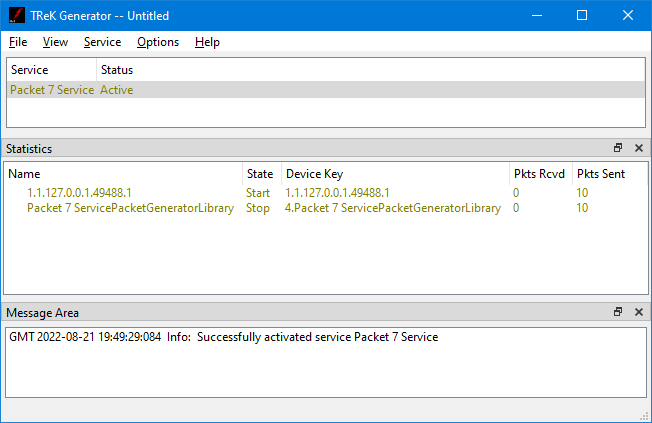
Device Statistics displays all the network sockets or devices in use by all active services being used to generate or forward data. When the device is a network socket it will include the IP address and Port. When the device is a library device that performs a specific function, such as handling bundle protocol data, the name will reflect the device’s function. Figure 18 shows the device statistics view. In this example, there is one network socket and one Packet Generator Library displayed. When data is generated by the Packet Generator Library the Pkts Sent column will update reflecting the number of packets generated. When data is forwarded on the network socket the Pkts Sent column will update reflecting the number of packets forwarded.
Expand All
The Expand All option will expand the Statistics tree to show all items if applicable for that specific view.
Configure Statistics
The statistics information displayed can be configured using the Configure Statistics dialog. This dialog can be accessed using the statistics pop-up menu or the Configure button in the Statistics dialog. Detailed information is covered in section Configure Statistics Dialog.
Reset Statistics
Reset Statistics will reset all statistics in all views to zero.
Configure Statistics Dialog
The Configure Statistics Dialog is context dependent based on the current statistics configuration. It provides the capability to show and hide columns. Each configuration is described below.
Service and Service Device Statistics Configuration
The Configure Statistics Dialog shown in Figure 19 is displayed when the statistics configuration is set to Service Statistics or Service Device Statistics.
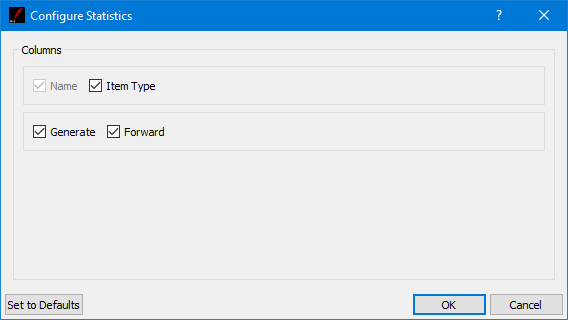
Each field is described below.
Name
Name corresponds to the service in the main window service list.
Item Type
Item Type identifies the type of item for which statistics are being provided.
Service Function Columns
The Generate and Forward columns provide statistics associated with those specific functions. For example, the Generate column indicates how many packets have been generated and the Forward column indicates how many packets have been forwarded.
Configure Statistics (Device Statistics)
The Configure Statistics Dialog shown in Figure 20 is displayed when the statistics configuration is set to Device Statistics.
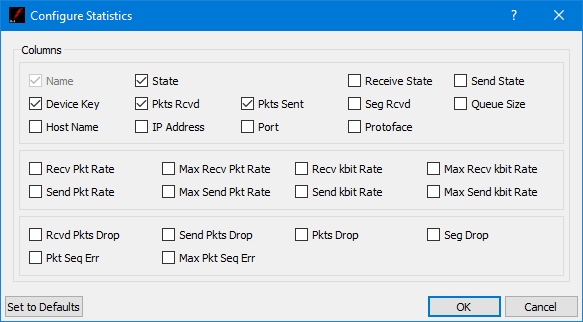
Each field is described below.
Name
Name is a character string that uniquely identifies each device and packet type. The device name is the device key if no device name is provided when the device is created. The packet name is the packet key associated with the packet.
State
State is the current state or condition of a device. Valid states include Start, Stop,
Pause, Pulse, Ready and Undefined. If you check the State checkbox, the State column will be displayed.
Receive State
Receive State is the current receive state of an object. Valid receive states include Ready To Receive, Receiving and Not Receiving. If you check the Receive State checkbox, the Receive State column will be displayed.
Send State
Send State is the current receive state of an object. Valid receive states include Ready To Send, Sending and Not Sending. If you check the Send State checkbox, the Send State column will be displayed.
Device Key
Device Key is a character string that uniquely identifies each device. If you check the Device Key checkbox, the Device Key column will be displayed.
Pkts Rcvd
Packets received represents the number of packets received. If you check the Pkts Rcvd checkbox, the Pkts Rcvd column will be displayed.
Pkts Sent
The number of packets sent to a destination. If you check the Pkts Sent checkbox, the Pkts Sent column will be displayed. Pkts Sent is not the same as packets forwarded. Pkts Sent is used to represent the number of packets sent across a socket that is configured to receive and send packets.
Seg Rcvd
Segments Received represents the number of segments received. This column is only applicable for TCP. If you check the Seg Rcvd checkbox, the Seg Rcvd column will be displayed.
Queue Size
Queue Size is the size of the queue that temporarily buffers packets that are being processed by a device. A device does not have to be associated with a queue. The device’s queue size is defined when the device is created. If you check the Queue Size checkbox, the Queue Size column will be displayed.
Host Name
Host Name is a unique identifier that serves as the name of the computer. If you check the Host Name checkbox, the Host Name column will be displayed.
IP Address
IP Address is the IP address of a device if the device is a socket. If you check the IP Address checkbox, the IP Address column will be displayed.
Port
Port is the port number of the device if it is a socket. The port number is a string identifying the type of socket (e.g., client, listener or server) formatted as “c/l/s”. If the socket is a client socket then the port number will be followed by two "/" (e.g., 6100//). If the client socket is connected to a listener socket, the listener's port number is also listed (e.g., 6100/5432/). If the socket is a server socket then the client port number that is connected to the server is listed first, followed by two "/" and the server's listener port number (e.g., 6100//7890). If the socket is a listener socket the listener's port number is listed between two "/" (e.g., /5555/). If you check the Port checkbox, the Port column will be displayed.
Protoface
Protoface is the IP transportation protocol, either TCP or UDP, of a socket device. If you check the Protoface checkbox, the Protoface column will be displayed.
Recv Pkt Rate
Receive Packet Rate represents the number of packets received in the last second. If you check the Recv Pkt Rate checkbox, the Recv Pkt Rate column will be displayed.
Max Recv Pkt Rate
Maximum Receive Packet Rate represents the maximum packet rate seen thus far. If you check the Max Recv Pkt Rate checkbox, the Max Recv Pkt Rate column will be displayed.
Recv kbit Rate
Receive kilobit Rate represents the current number of kilobits per second that are being received. If you check the Recv kbit Rate checkbox, the Recv kbit Rate column will be displayed.
Max Recv kbit Rate
Maximum Receive kilobit Rate represents the maximum kilobit rate seen thus far. If you check the Max Recv kbit Rate checkbox, the Max Recv kbit Rate column will be displayed.
Send Pkt Rate
Send Packet Rate represents the number of packets sent in the last second. If you check the Send Pkt Rate checkbox, the Send Pkt Rate column will be displayed.
Max Send Pkt Rate
Maximum Send Packet Rate represents the maximum packet rate sent thus far. If you check the Max Send Pkt Rate checkbox, the Max Send Pkt Rate column will be displayed.
Send kbit Rate
Send kilobit Rate represents the current number of kilobits per second that are being sent. If you check the Send kbit Rate checkbox, the Send kbit Rate column will be displayed.
Max Send kbit Rate
Maximum Send kilobit Rate represents the maximum kilobit rate sent thus far. If you check the Max Send kbit Rate checkbox, the Max Send kbit Rate column will be displayed.
Rcvd Pkts Drop
Received Packets Dropped represents the number of packets that TReK received and then dropped. If you check the Rcvd Pkts Drop checkbox, the Rcvd Pkts Drop column will be displayed.
Send Pkts Drop
Send Packets Dropped represents the number of packets that TReK attempted to send but dropped. If you check the Send Pkts Drop checkbox, the Send Pkts Drop column will be displayed.
Pkts Drop
Packets Dropped represents the number of packets that were dropped because they could not be processed by another device. If you check the Pkts Drop checkbox, the Pkts Drop column will be displayed.
Seg Drop
Segments Dropped represents the number of segments that TReK received and then dropped. This column is only applicable for TCP. If you check the Seg Drop checkbox, the Seg Drop column will be displayed
Pkt Seq Err
Packet Sequence Error represents the number of packet sequence errors that occurred for a packet that is being received. A packet sequence error occurs when a packet arrives out of order (i.e. a packet with a sequence count of six was expected but instead a packet with a sequence count of seven was received). This calculation assumes a zero sequence count implies a sequence count reset and is not considered a packet sequence error. If you check the Pkt Seq Err checkbox, the Pkt Seq Err column will be displayed.
Max Pkt Seq Err
Maximum Packet Sequence Error represents the maximum packet sequence error that occurred for a packet that is being received. TReK determines the maximum packet sequence error by calculating the delta or difference between the expected packet sequence count and the actual packet sequence count. This calculation assumes a zero sequence count implies a sequence count reset and is not considered a packet sequence error. If you check the Max Pkt Seq Err checkbox, the Max Pkt Seq Err column will be displayed.
Set To Defaults
Set To Defaults will set all the fields to their default values.