 |
Telescience Resource Kit
TReK Applications
5.4.0 ART
|
|
|
Telescience Resource Kit
TReK Applications
5.4.0 ART
|
The Database configuration provides the capability to work with a TReK Database. Figure 7 shows the Main Window in the Database configuration. The main capabilities provided include creating a new database, viewing information about packets, collections, and types in the database, adding a packet to the database, deleting a packet from the database, and validating a database. To work with database tables directly, a SQLite tool can be used to open and edit the database contents. There are many free and shareware tools available.
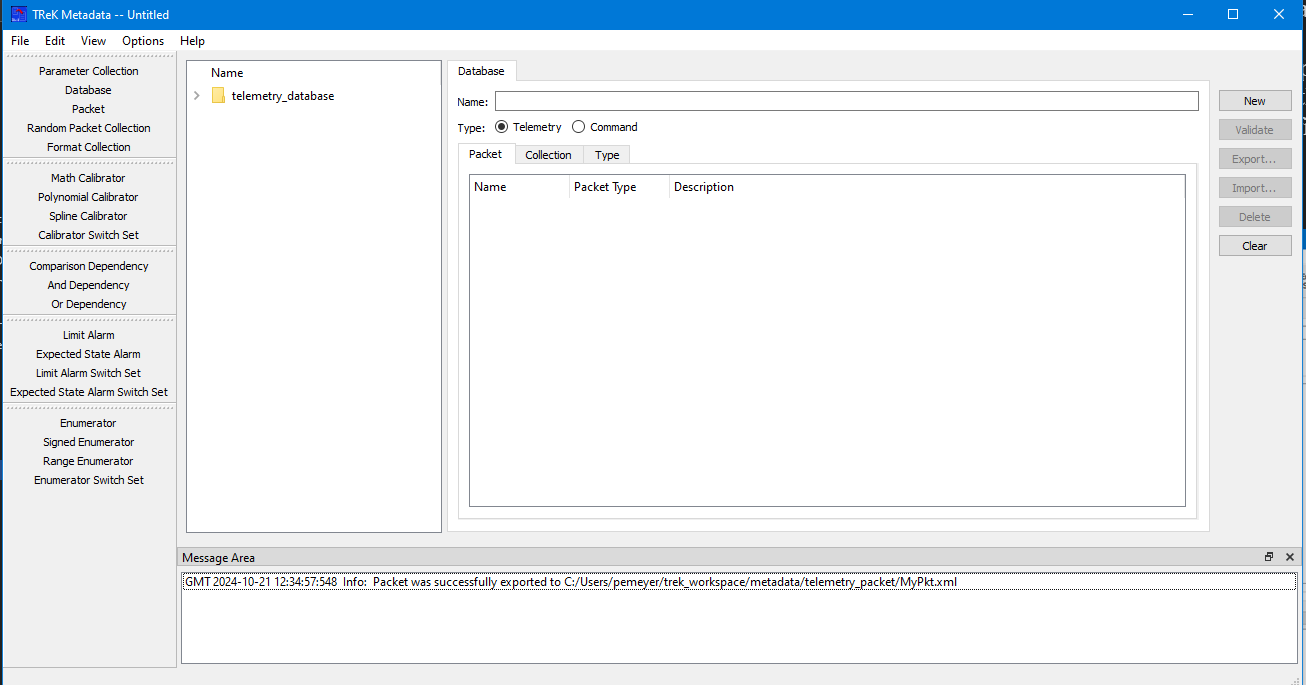
On the left-hand side of the Main Window you will see the Library Area. It is configured to show a list of Telemetry Databases or Command Databases that reside in the trek_workspace. When you create a database and export it to the trek_workspace, it will automatically be added to the applicable database list. The Library Area only displays items stored in the trek_workspace. If you need to work on an item that is outside of the trek_workspace, you will need to move it into the trek_workspace. In the middle of the Main Window you will see the Work Area showing the Database Tab. This is where you will see information stored in the Database. On the right-hand side of the Main Window you will see a set of buttons that provide various capabilities applicable to the Database you are working with (e.g., Validate to validate the Database or Export to export a packet from the database).
The Work Area provides the following information:
Name The name field is used to display the name of the Database. The name field cannot be directly edited by typing in the field. The name field is populated when a new database is created using the New button or drag and drop is used to populate the field.
Type The type selection is used to identify the type of Database: Telemetry or Command.
Packet Tab The Packet Tab shows the packets in a Telemetry Database and the Commands in a Command Database.
Collection Tab The Collection Tab shows the collections in a Telemetry Database and the collections in a Command Database.
Types Tab The Types Tab shows the types in a Telemetry Database and the types in a Command Database.
The Metadata application uses Drag and Drop to move items from the Library Area into the Work Area.
To open a database, use your left mouse button to select a database from the Library, and while holding the left mouse button down, drag the item to the Name field and drop it. The database will be opened and the list of packets in the database will be displayed in the list as shown in Figure 8.
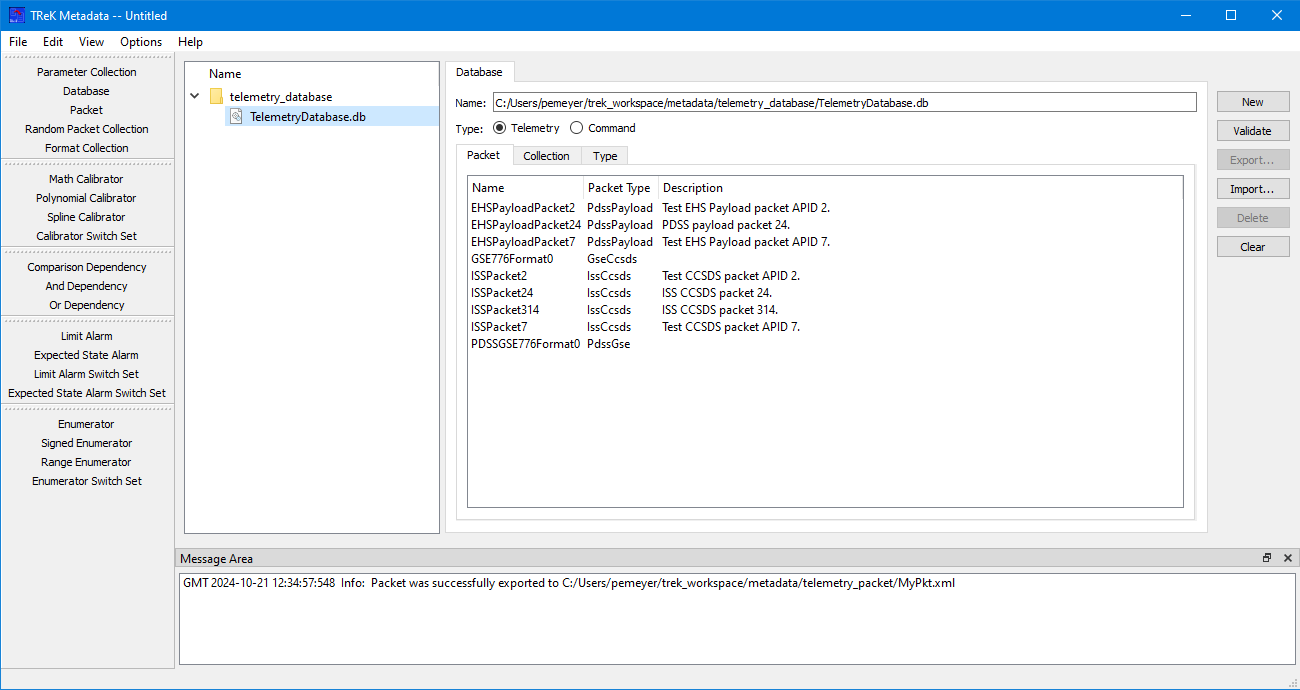
The following functions are available when working with a Database:
New New provides the capability to create a new database.
Validate Validate provides the capability to validate a database.
Export Export provides the capability to export a selected packet to a file.
Import Import provides the capability to import information into a database. For a telemetry database, this includes the following types of imports: a packet definition defined in an ASCII file format as described in the TReK Telemetry Database Definition Document, a collection definition defined in an ASCII file format as described in the TReK Telemetry Database Definition Document, a type definition defined in an ASCII file format as described in the TReK Telemetry Database Definition Document, and a HOSC Ground Support Equipment (GSE) packet definition as described in the Payload to Generic User Interface Definition Document (PGUIDD).
Important Note about Parameter Names after Importing a GSE Packet Definition When a GSE packet definition is imported the parameter names are changed. To keep parameter names unique, characters representing type of processing are added to the name. For example, suppose the name of the parameter is UGZG20RT2004J. If the parameter is unprocessed, the parameter will be named UGZG20RT2004J=UN where =UN was added to indicate that it is an unprocessed parameter. A converted value will have =CO added to the name, and a calibrated value will have =CA added to the name. Additional characters are also added to indicate Overall Status (=OStatus), Number of Samples (=Samples), and Sample Status Values (=Status). The following shows an example for a GSE parameter named UGZG20RT2004J:
| UGZG20RT2004J | Original Parameter name in GSE Packet Definition |
| UGZG20RT2004J=UN | Unprocessed Value Name |
| UGZG20RT2004J=UNOStatus | Unprocessed Overall Status Name |
| UGZG20RT2004J=UNSamples | Unprocessed Number of Samples Name |
| UGZG20RT2004J= UNStatus | Unprocessed Sample Status Values Name |
For a command database, this includes the following types of imports: a packet definition defined in an ASCII file format as described in the TReK Command Database Definition Document, a collection definition defined in an ASCII file format as described in the TReK Command Database Definition Document, and a type definition defined in an ASCII file format as described in the TReK Command Database Definition Document
Delete Delete provides the capability to delete a selected packet from the database.
Clear Clear provides the capability to clear the Work Area.