 |
Telescience Resource Kit
TReK Applications
5.4.0 ART
|
|
|
Telescience Resource Kit
TReK Applications
5.4.0 ART
|
The GSE Packet Generation capability can be used to extract data values from incoming data streams and place the values in a custom packet for distribution. The packets will be formatted in the Ground Support Equipment (GSE) packet defined in the Payload to Generic User Interface Definition Document (PGUIDD) SSP-50305 Volume 1. The GSE Packet Generation capability is available at the service level and globally (across services). If you want to generate a custom packet with parameters from packets in a single service, you can configure GSE packet generation as part of the service. If you want to generate a custom packet from parameters in packets across services or from different types of packets, you can define a global GSE packet generation definition using the Manage GSE Packet Generation dialog. Parameters are only available to add to a global GSE packet generation definition if they are in a packet that is actively being processed. The Manage GSE Packet Generation dialog is available from the Parameters menu.
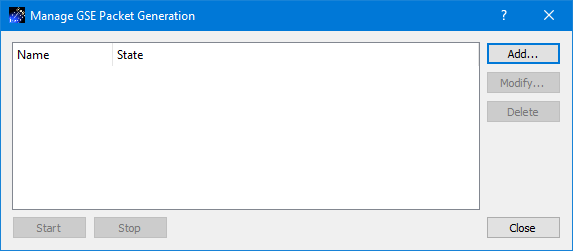
Each field is described below.
GSE Packet Generation List The main area of the dialog is used to display a list of global GSE Packet Generation definitions. GSE packet generation handled by a service is not displayed in this dialog.
Add The Add button provides access to the Add GSE Packet Generation Definition dialog. It is used to create a new global GSE Packet Generation definition.
Modify The Modify button provides access to the Modify GSE Packet Generation Definition dialog. It is used to modify an existing global GSE Packet Generation definition.
Delete The Delete button provides the capability to delete a global GSE Packet Generation definition.
Start The Start button provides the capability to start the global GSE packet generation.
Stop The Stop button provides the capability to stop the global GSE packet generation.
Close The Close button closes the dialog.
The Add GSE Packet Generation Definition dialog is used to create a new “global” GSE Packet Generation definition. It is shown in Figure 64. For global GSE Packet Generation, the GSE packet data flow will start when you select “Start” on the Manage GSE Packet Generation dialog.
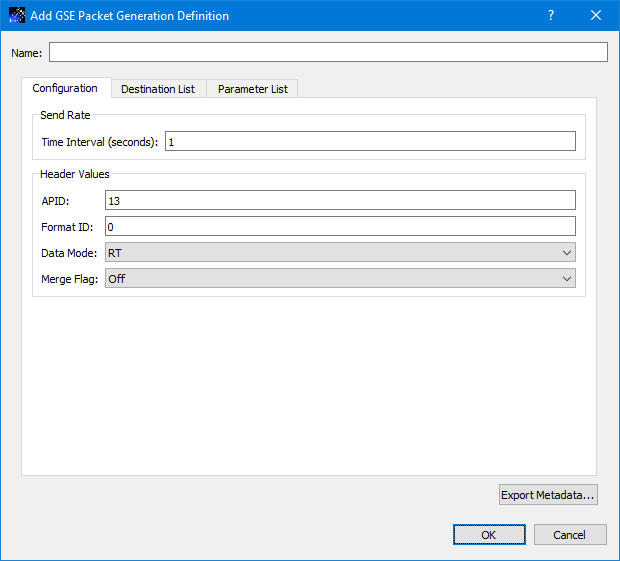
Each field is described below.
Name Each GSE Packet Generation definition must have a unique name.
Configuration Tab The Configuration tab, shown in Figure 64, provides the capability to configure the GSE packet generation definition.
Send Rate The send rate defines the rate to use when sending the GSE packets.
Header Values The Header Values section provides a way to enter values for the APID, Format ID, Data Mode, and Merge Flag header fields in the GSE packet.
Destination List Tab The GSE packets generated will be sent to the destinations identified on the Destination List tab. The Destination List tab provides the same capabilities as those shown on the Service dialog Forward Tab. Please reference the Forward tab for details.
Parameter List Tab The Parameter List tab is shown in Figure 65. The Parameter list provides a way to define the parameters in the GSE packet.
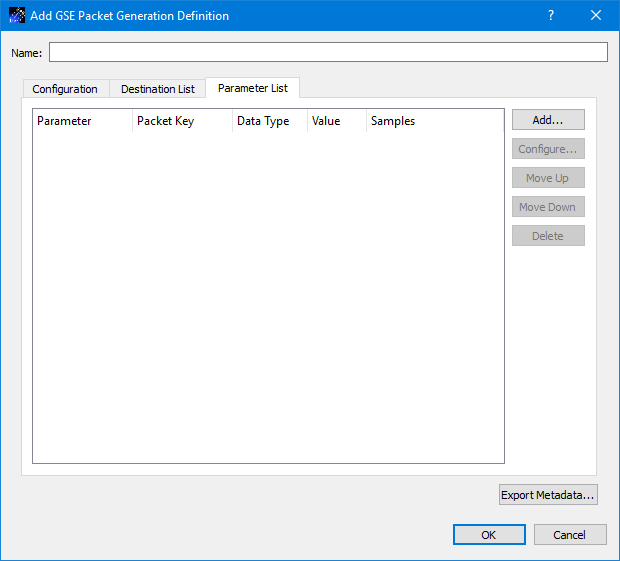
Add The Add button provides a way to add parameters to the list. You can select parameters from packets that are actively being processed. When you add a parameter to the list, it will be added with default values for each of the columns. You can use the Configure dialog to change a parameter’s properties.
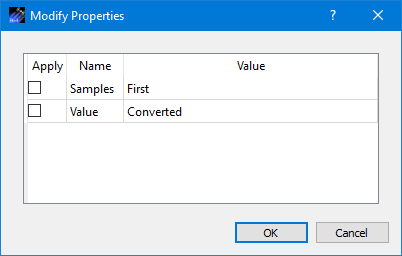
Configure The Configure button is available when you select a parameter. Pushing the Configure button will display the Modify Properties dialog shown in Figure 66. This dialog provides a way to modify properties like the number of samples or the type of value to be placed in the GSE packet for the selected parameter.
Move Up The Move Up button is available when a parameter is selected. Pushing this button will move the selected parameter up in the list.
Move Down The Move Down button is available when a parameter is selected. Pushing this button will move the selected parameter down in the list.
Delete The Delete button is available when one or more parameters are selected. Pushing this button will delete the selected parameters.