 |
Telescience Resource Kit
TReK Applications
5.4.0 ART
|
|
|
Telescience Resource Kit
TReK Applications
5.4.0 ART
|
The Parameter Collection configuration provides the capability to work with a Parameter Collection. The Main Window with the Parameter Collection configuration is shown in Figure 4.
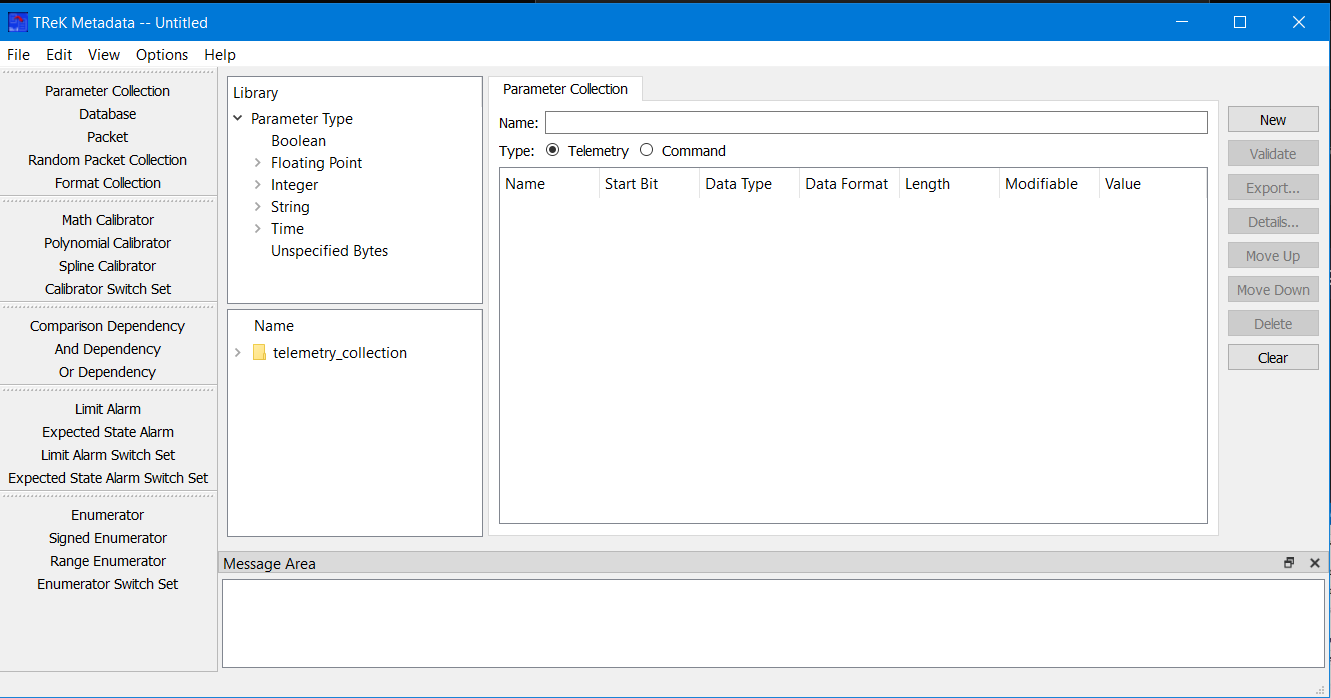
On the left-hand side of the Main Window you will see the Library Area. It is configured to provide access to items you can use to create a Parameter Collection. The Parameter Type list provides a list of all the parameter types that can be added to a Parameter Collection. The lower half of the library area shows the Telemetry Collection or Command Collection list. It is configured to provide access to existing Parameter Collections stored in the trek_workspace. When you create a Parameter Collection and export it to the trek_workspace, it will automatically be added to the Parameter Collection list. The Library Area only displays items stored in the trek_workspace. If you need to work on an item that is outside of the trek_workspace, you will need to move it into the trek_workspace. In the middle of the Main Window you will see the Work Area showing the Parameter Collection Tab. This is where you will define the details of your Parameter Collection. On the right-hand side of the Main Window you will see a set of buttons that provide various capabilities applicable to the Parameter Collection you are working on (e.g., Validate to validate the Parameter Collection or Export to export the Parameter Collection).
The Work Area provides the capability to define the following properties for the Parameter Collection:
Name The name text field is used to enter the name of the Parameter Collection.
Type The type selection is used to identify the type of Parameter Collection: Telemetry or Command.
Parameter List The Parameter List is used to identify the parameters in the Parameter Collection.
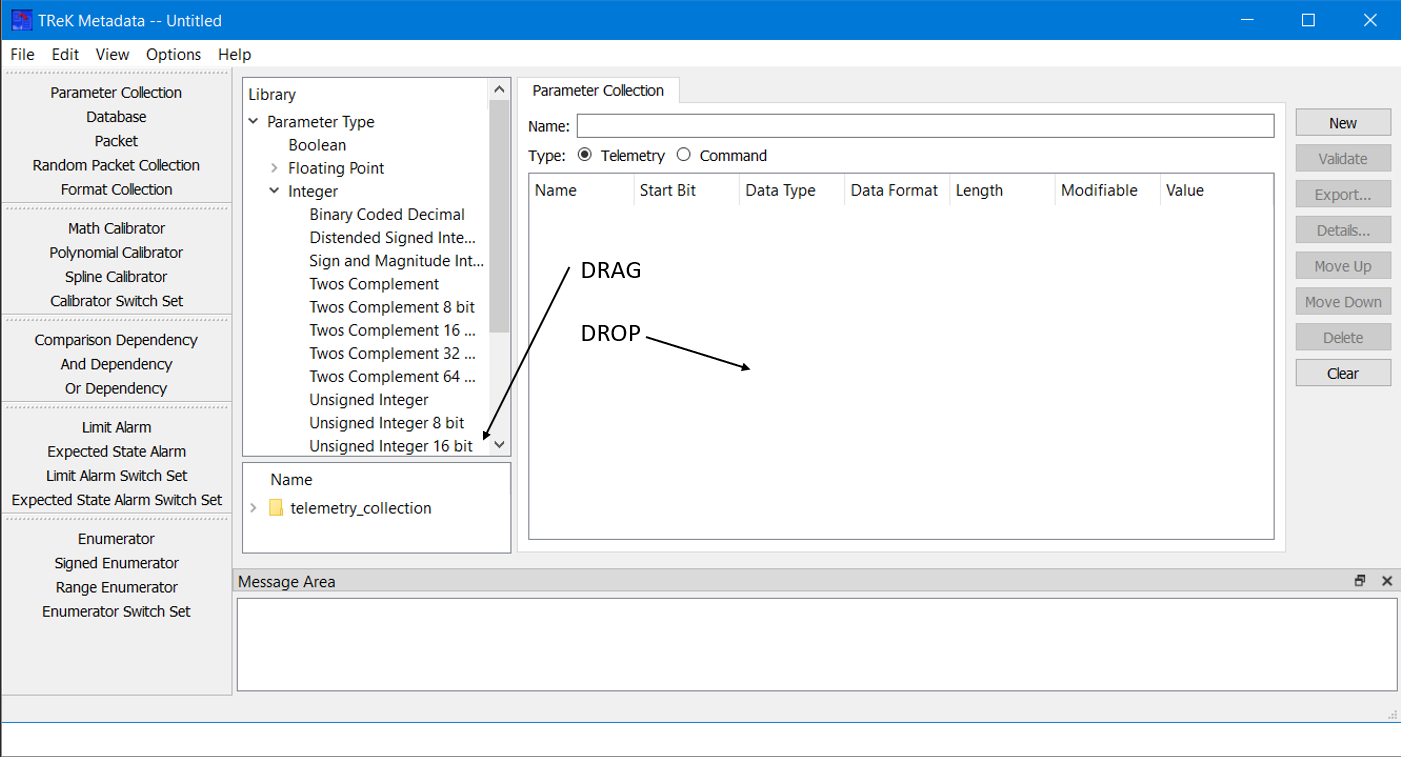
The Metadata application uses Drag and Drop to move items from the Library Area into the Work Area.
To add a parameter, use your left mouse button to select a parameter from the Library Parameter Type list, and while holding the left mouse button down, drag the item to the Work Area and drop it as shown by the arrows in Figure 5.
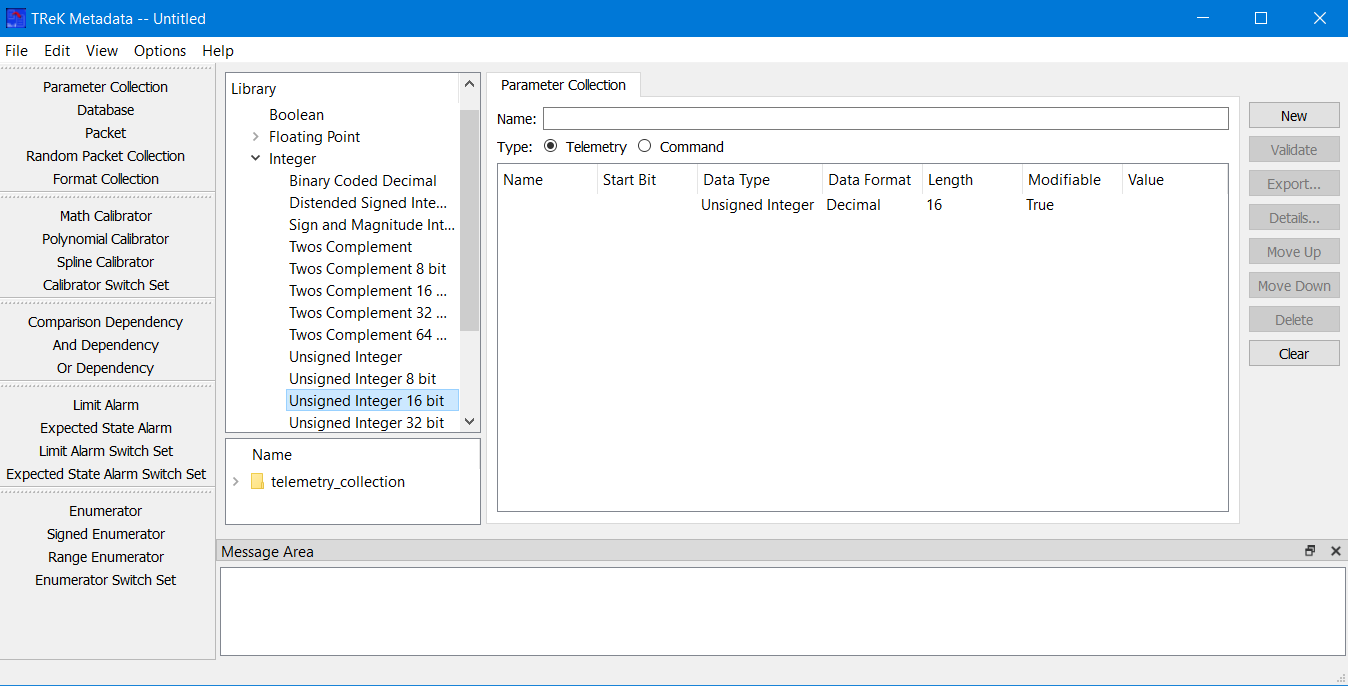
After dropping the parameter, you should see the parameter in the list as shown in Figure 6.
To modify an existing Parameter Collection, you can drag the collection from the Telemetry Collection list or the Command Collection list and drop it in the Name field. This will load the Parameter Collection information into the Work Area.
Collection Drag and Drop Tips and Tricks
| ⮚ | If you drop an item from the Parameter Type list anywhere on the list it will be placed at the end of the list. |
| ⮚ | If you drop an item from the Parameter Type list on top of another item, the item will be placed below that item in the list. |
| ⮚ | If you drag an item from a Telemetry Collection list or Command Collection list and drop it in the Name field, the Parameter Collection information will be loaded into the Work Area. |
The following functions are available when working with a Parameter Collection:
New New provides the capability to clear the existing Parameter Collection information.
Validate Validate provides the capability to validate the Parameter Collection information.
Export Export provides the capability to save the Parameter Collection to a file.
Details Details provides the capability to view and modify the properties associated with a selected parameter.
Move Up Move Up provides the capability to move a selected parameter up in the list.
Move Down Move Down provides the capability to move a selected parameter down in the list.
Delete Delete provides the capability to delete a selected parameter.
Clear Clear provides the capability to clear the Work Area.