 |
Telescience Resource Kit
TReK Applications
5.4.0 ART
|
|
|
Telescience Resource Kit
TReK Applications
5.4.0 ART
|
The Packet configuration provides the capability to work with a Packet. Figure 9 shows the Main Window in the Packet configuration.
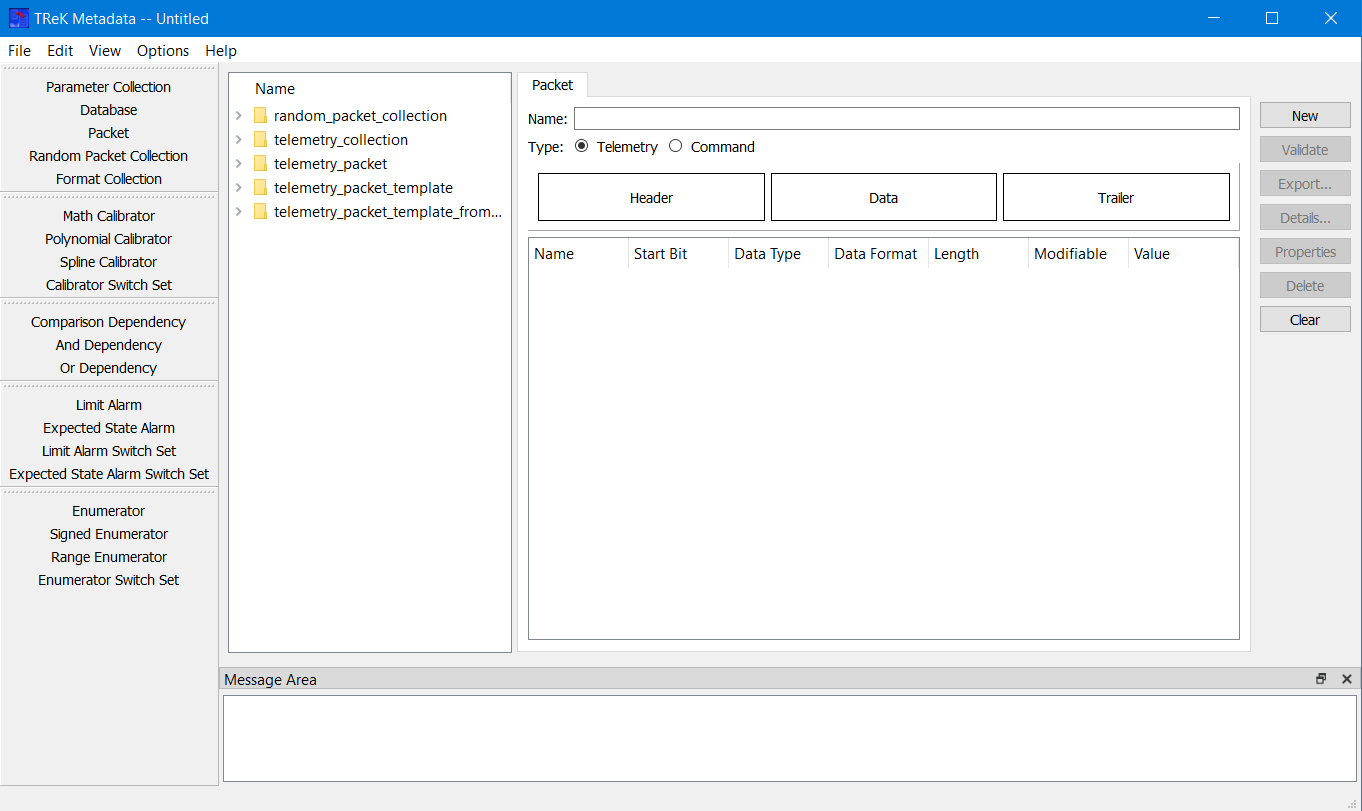
The Main Window Library Area is configured to provide access to items you can use to create or modify a packet. On the left-hand side of the Main Window you will see the Library Area. In the middle of the Main Window, the Work Area provides a place to define the details of your packet. On the right-hand side of the Main Window you will see a set of buttons that provide various capabilities applicable to the Packet you are working on. Each is described below.
Library Area The Library Area is configured to provide access to items you can use to create or modify a Packet. The Telemetry Packet Template From Install list provides access to packet templates that are installed with the TReK software. You can create a packet from scratch. However, it is much easier to use a packet template and save yourself some work. There is also a Command Packet Template From Install. A packet template is a packet that includes pre-populated zones and packet properties corresponding to the specific type of packet. For example, a CCSDS packet template contains a CCSDS Header and the following packet properties: a Counter parameter, an APID Identifier, a Length parameter, and a Timestamp Parameter. By using a template, you can start your packet definition with all that information already defined. The Telemetry Collection or Command Collection list is configured to provide access to existing Parameter Collections stored in the trek_workspace. The Telemetry Packet or Command Packet list is configured to provide access to existing Packets stored in the trek_workspace. When you create a Parameter Collection or Packet and export it to the trek_workspace, it will automatically be added to the Parameter Collection list or Packet list. The Random Packet Collection can be used to add a Random Packet Collection to a telemetry packet. The Telemetry Packet Template and Command Packet Template lists display user defined packet templates that are stored in the trek_workspace. The Library Area only displays items stored in the trek_workspace. If you need to work on an item outside of the trek_workspace, you will need to import the item using the appropriate configuration area.
Work Area The Work Area provides a place to define the details of your packet. Notice the rectangle that contains three smaller rectangles with one for each zone of the Packet (Header, Data, and Trailer) as shown in Figure 10.

These rectangles are “Drop” zones. The large rectangle is a drop zone for the Entire Packet. If you drop a Packet Template or a Packet on the large rectangle, this will populate the entire Packet. If you drop a Packet or a Parameter Collection on one of the individual packet zones, that zone of the Packet will be updated. The drop zones will highlight so you can verify you are dropping the item in the correct location. Figure 11 shows what the “Entire Packet” drop zone looks like when it is highlighted. Figure 12 shows what the “Data Zone” drop zone looks like when it is highlighted.


Button Area On the right-hand side of the Main Window you will see a set of buttons that provide various capabilities applicable to the Packet you are working on (e.g., Validate to validate the Packet or Export to export the Packet).
The Work Area provides the capability to define the following properties for the Packet:
Name The name field is used to enter the name of the Packet.
Type The type selection is used to identify the type of Packet: Telemetry or Command.
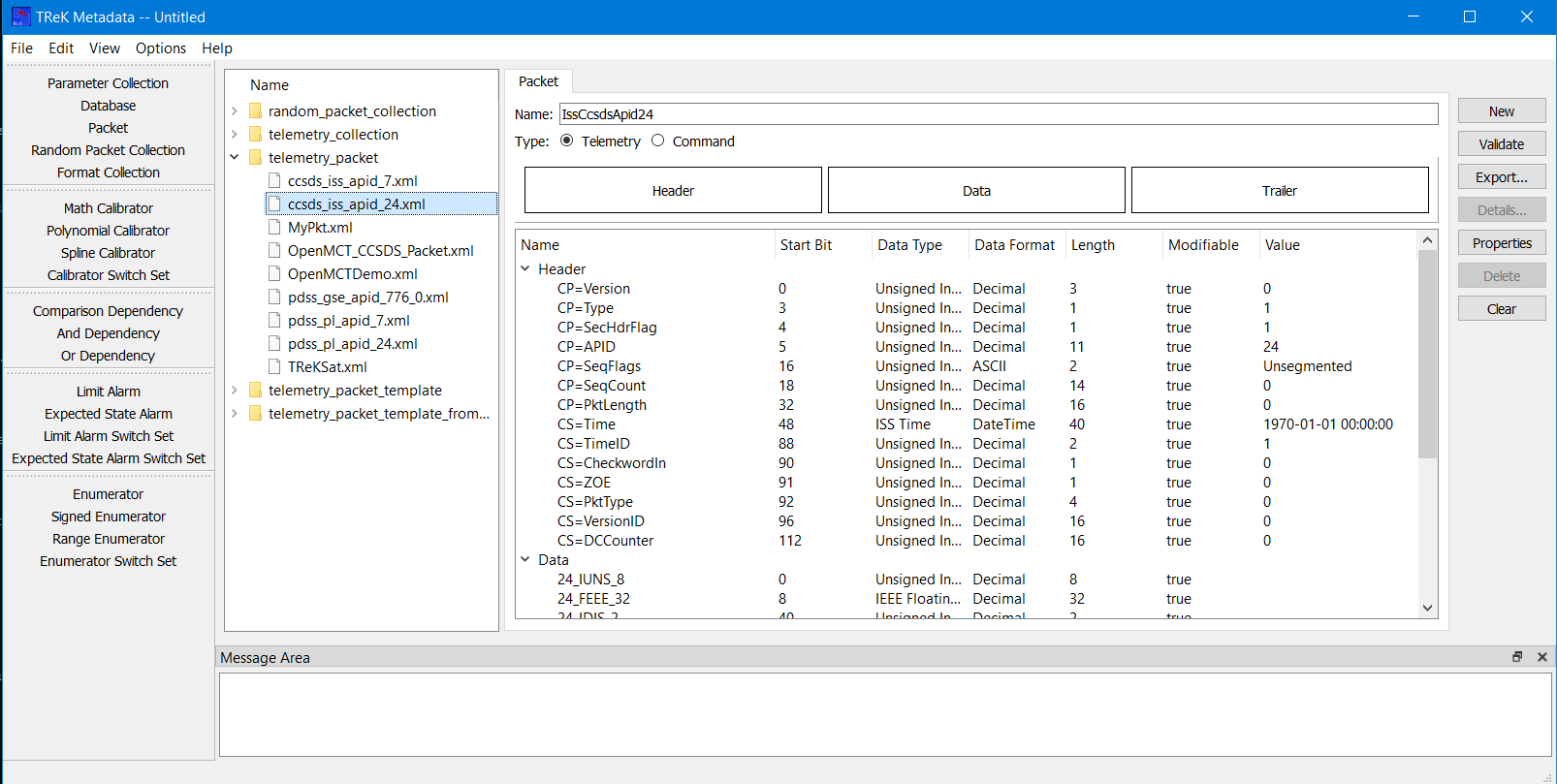
Packet Contents List The Packet Content list is used to show the contents of the Packet. Figure 13 shows an example of a Packet displayed in the Packet Contents List.
The Metadata application uses Drag and Drop to move items from the Library Area into the Work Area.
To create or modify an existing Packet, you can drag items from the Library Area and drop them into one of the drop zones as described above. This will update the Packet information in the Work Area.
Packet Tips and Tricks
| ⮚ | If you drop a Packet Template or a Packet on the large rectangle, this will populate the entire Packet. |
| ⮚ | If you drop a Packet or a Parameter Collection on one of the individual packet zones, that zone of the Packet will be updated. |
| ⮚ | If you use your right mouse button you can access a context sensitive pop-up menu when selecting a Header Zone, Data Zone, or Trailer Zone in the list. This menu will provide capabilities such as Add Header, Add Data, Add Trailer, Replace, and Delete. This provides the capability to add, modify, or delete child zones. |
The following functions are available when working with a Packet:
New New provides the capability to clear the existing Packet information.
Validate Validate provides the capability to validate the Packet information.
Export Export provides the capability to save the Packet to a file.
Properties Properties provides the capability to define Packet Properties. Please reference section Packet Properties for details.
Details Details provides more information about the selected item.
Delete Delete provides the capability to delete a selected zone.
Clear Clear provides the capability to clear the Work Area.