 |
Telescience Resource Kit
TReK Applications
5.4.0 ART
|
|
|
Telescience Resource Kit
TReK Applications
5.4.0 ART
|
The Enumerator Switch Set configuration provides the capability to work with an Enumerator Switch Set. Figure 51 shows the Main Window in the Enumerator Switch Set configuration.
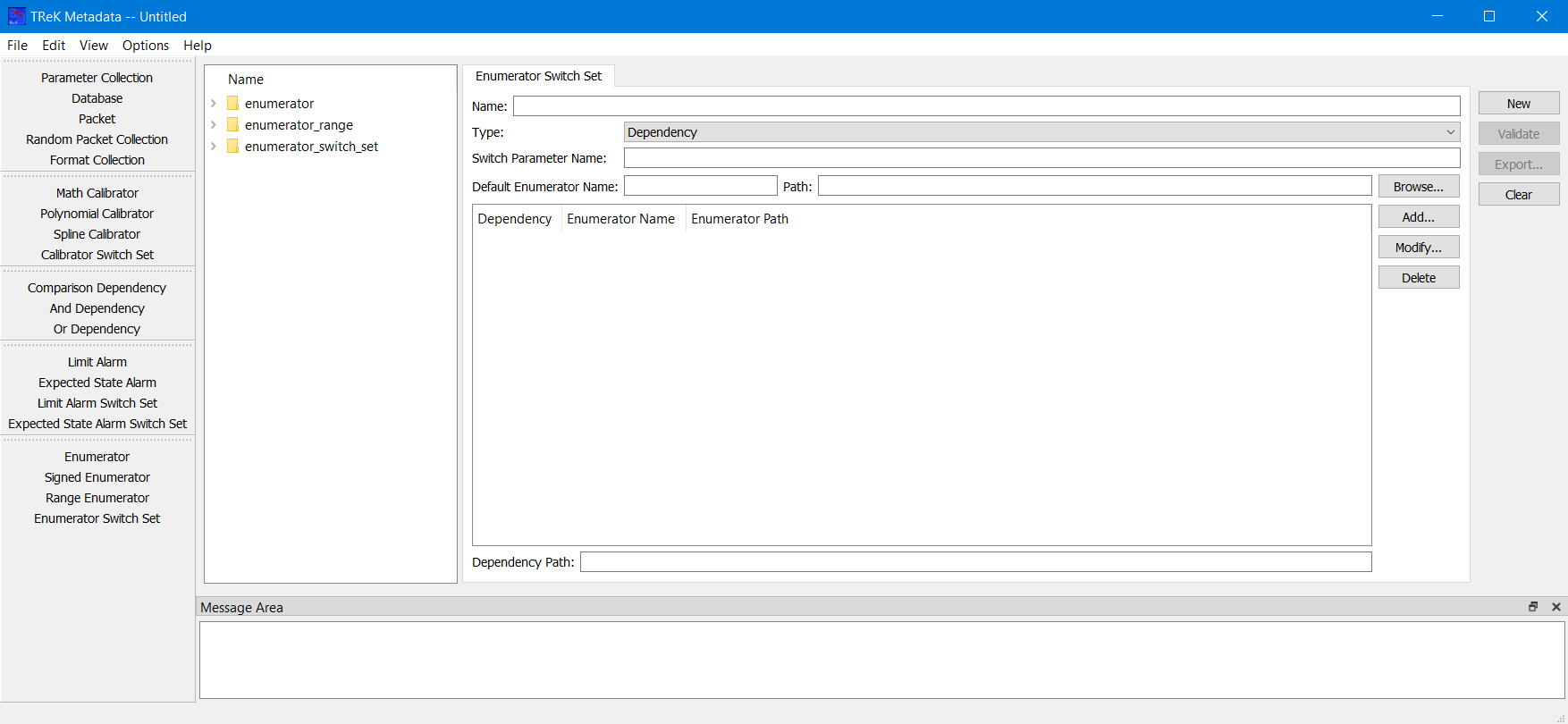
On the left-hand side of the Main Window you will see the Library Area. It is configured to provide access to existing Enumerators and Enumerator Switch Sets in the trek_workspace. When you create an Enumerator Switch Set and export it to the trek_workspace, it will be added to the Enumerator Switch Set list. The Library Area only displays items stored in the trek_workspace. If you need to work on an item that is outside of the trek_workspace, you will need to move it to the trek_workspace. In the middle of the Main Window you will see the Work Area showing the Enumerator Switch Set Tab. This is where you will define the details of the Enumerator Switch Set. On the right-hand side of the Main Window you will see a set of buttons that provide various capabilities applicable to the Enumerator Switch Set you are working on (e.g., Validate to validate the Enumerator Switch Set or Export to export the Enumerator Switch Set).
The Work Area provides the following information:
Name The name field is used to display the name of the Enumerator Switch Set.
Type The type menu is used to specify the type of Enumerator Switch Set – Dependency, Enumeration or Range.
Switch Parameter Name The name of the Parameter on which to switch.
Default Enumerator Name The default enumerator name field is used to display the name of the default enumerator. This must be the name of an enumerator that exists in the trek_workspace. This field is not editable. It will be populated when you enter a path into the Default Enumerator Path field manually or by using the Browse button to select an Enumerator.
Default Enumerator Path The default enumerator path field is used to display the path of the default enumerator. The default enumerator must exist in the trek_workspace. You can enter the path manually or you can use the Browse button to browse for an Enumerator. If you delete the text in the Default Enumerator Path field, the Default Enumerator Name field will be cleared. If you enter information in the Default Enumerator Path field that is invalid, the Default Enumerator Name field will be cleared. If you enter valid information in the Default Enumerator Path field manually or by using the Browse button the Default Enumerator Name field will be automatically populated.
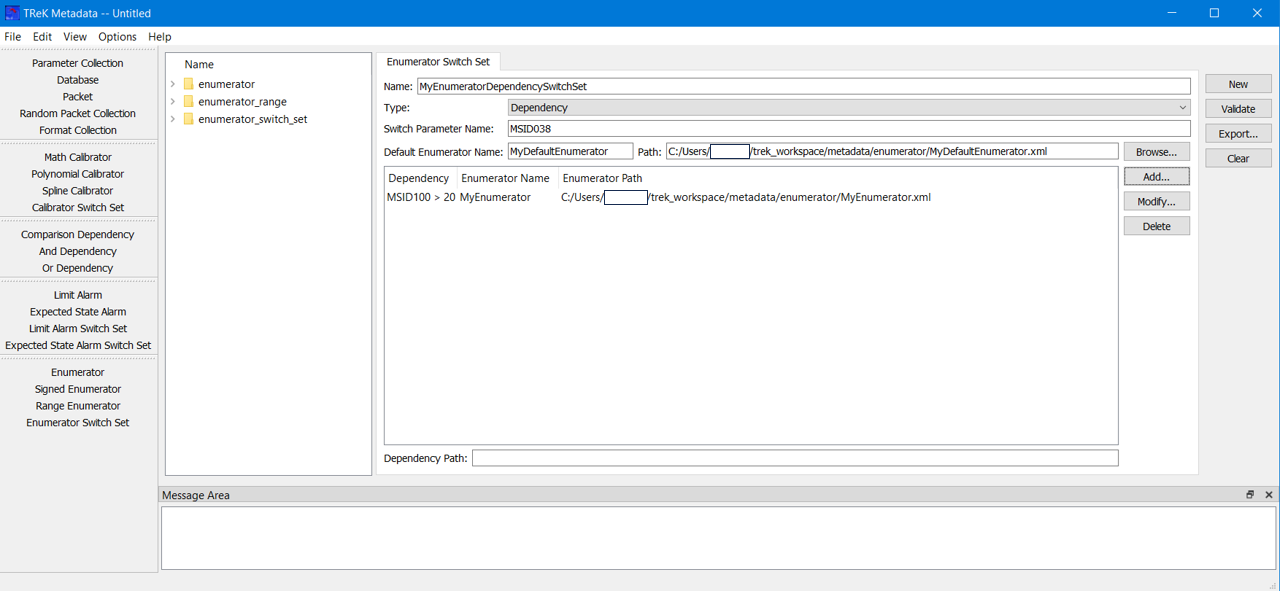
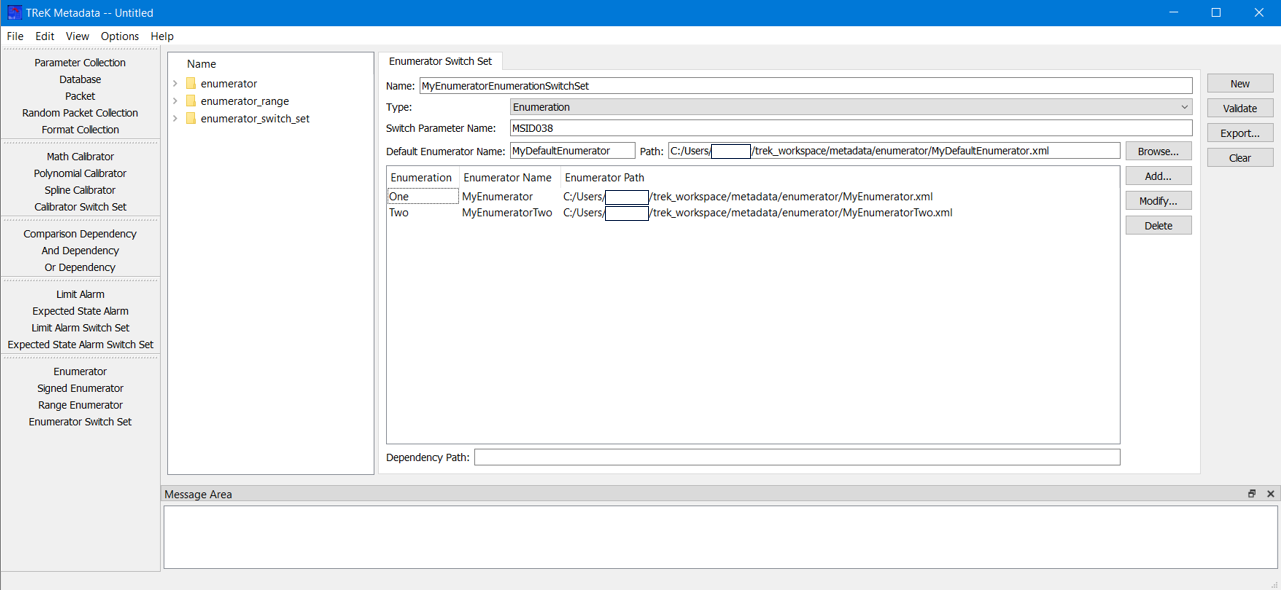
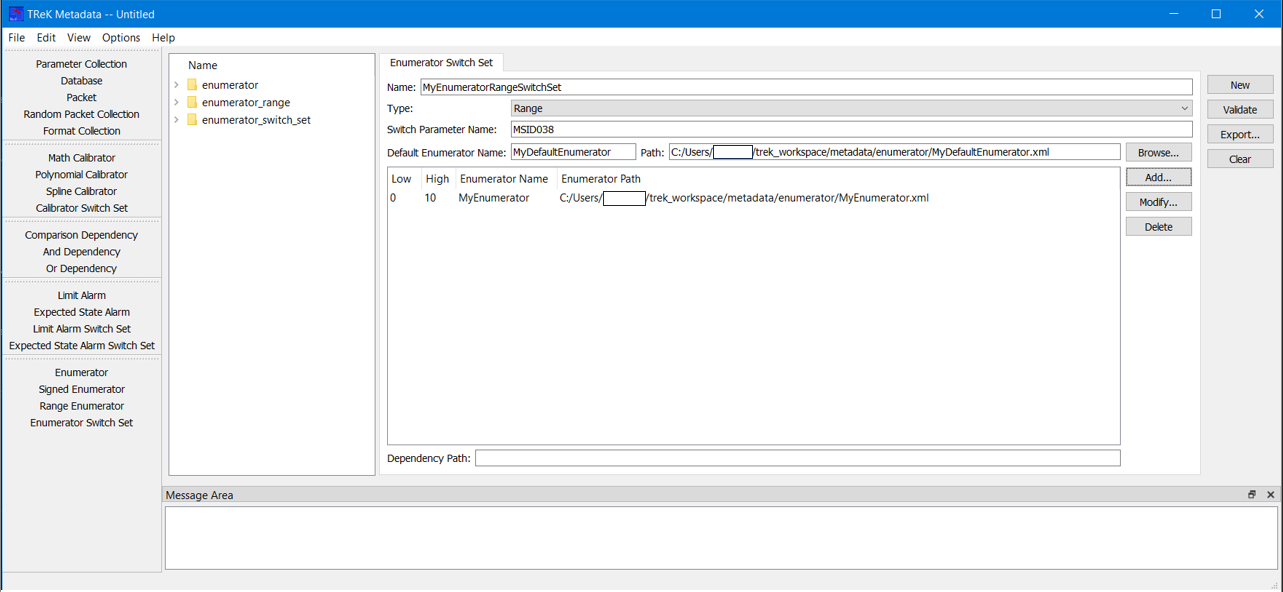
Set List The Set List is used to enter set information for the Enumerator Switch Set. The Set List area will be configured based on switch type. The Add button is used to add a row to the list. The Modify button is used to modify an existing item in the list. Modify will be available when an item in the list is selected. Enumeration and Range (Low and High) information can be edited using the Modify dialog or directly in the list. Dependency information is derived from the Dependency identified in the Modify dialog and cannot be edited in the list. The Delete button is used to delete a row from the list. When an Enumerator is assigned to a set, the Enumerator name and Enumerator path will be displayed. When a Dependency row is selected, the Dependency path will be displayed in the Dependency Path field. Figure 52 shows a Dependency type switch. Figure 53 shows an Enumeration type switch. Figure 54 shows a Range type switch.
The following functions are available when working with an Enumerator Switch Set:
New New provides the capability to clear the existing Enumerator Switch Set information.
Validate Validate provides the capability to validate the Enumerator Switch Set information.
Export Export provides the capability to save the Enumerator Switch Set to a file.
Clear Clear provides the capability to clear the Work Area.